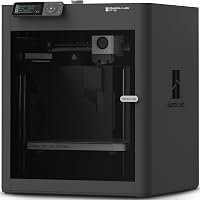
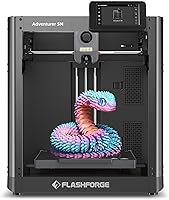
Best 3D Printers for Beginners: Top 7 Picks (October 2026)
The best beginner 3D printers include the Bambu Lab A1 for first-time home makers, the Bambu Lab P1S for broader material plans, and the Bambu Lab A1 mini for creative desk projects.
On this page (15 sections)
- Which is the best 3D printer for beginners with different goals?
- How we chose these beginner 3D printers
- Bambu Lab A1: the first choice for varied home projects
- Bambu Lab P1S: for beginners planning beyond basic materials
- Bambu Lab A1 mini: for small creative projects
- Anycubic Kobra X: for colorful models and gifts
- Flashforge Adventurer 5M: for practical parts and nozzle options
- Creality Ender 3 V3 SE: for learning assembly and upkeep
- Elegoo Centauri 2: for guided preparation before each job
- What matters most when choosing your first 3D printer?
- How should you prepare your workspace?
- How do you get from unboxing to a useful first print?
- What routine care prevents avoidable print problems?
- Which beginner mistakes waste the most time?
- Which beginner 3D printer should you choose?
The Bambu Lab A1 is the best 3D printer for beginners who want to make useful parts, gifts and home projects. It handles several calibration tasks automatically and gives you room to try different kinds of prints.
Choose the P1S for broader material plans, the A1 mini for creative desk projects, or the Kobra X for colorful gifts. Your first printer should fit the objects you want to make, the room available and the amount of setup you want to learn.
Our picks at a glance
-
1

-
2
-
3

Which is the best 3D printer for beginners with different goals?
The A1 is the default choice, but a clear project goal can make another printer a better fit. Think about your first 3 projects before choosing extra features.
A drawer organizer, a decorative lamp and an outdoor part have different needs. Start with the object, then choose the printer and material that can make it.
For the full process, read our complete 3D printer beginner guide. Our picks for 3D printers for home use help you weigh household space and placement.
How we chose these beginner 3D printers
We prioritized fewer manual setup steps, useful build space and clear controls over headline speed. Calibration aids matter most when they remove adjustments that could otherwise stop a beginner's first print.
We also compared material support, color hardware and file preparation tools. The scores reflect how each combination fits a new user's needs; a lower-ranked printer can still be the right choice for a specific project.
| Product | Best for | Build volume | Setup | Acceleration | Our score |
|---|---|---|---|---|---|
| Bambu Lab A1 | first-time home makers | 256 x 256 x 256 mm | Automatic calibration | 10,000 mm/s² | 8.8 |
| Bambu Lab P1S | broader material plans | 8.4 | |||
| Bambu Lab A1 mini | creative desk projects | Simple setup with automatic calibration | 8.1 | ||
| Anycubic Kobra X | colorful gifts | 260 x 260 x 260 mm | 8.0 | ||
| Flashforge Adventurer 5M | practical part projects | 220 x 220 x 220 mm | Automatic bed leveling | 7.9 | |
| Creality Ender 3 V3 SE | learning printer upkeep | Requires assembly | 7.7 | ||
| Elegoo Centauri 2 | guided print preparation | Automatic calibration and pre-print checks | 7.6 |
Bambu Lab A1: the first choice for varied home projects
Choose the A1 for a broad mix of beginner projects, especially if you want useful build space without managing several manual calibration steps.
Bambu Lab A1
- Automatic calibration
- 256 x 256 x 256 mm build volume
- Simple touchscreen
- Optional AMS lite for multi-color printing
The A1 suits beginners who want to make organizers, gifts and larger projects without managing several manual calibration steps.
Pros
- Automatic bed leveling and Z-offset calibration
- Room for varied home projects
- AMS lite can add multi-color printing
Cons
- Multi-color printing requires additional AMS lite hardware
Its 256 x 256 x 256 mm build volume gives you room for organizers, models and larger parts. Check the actual file size, though, because a tall object can still be too wide or need extra space for supports.
Full-auto calibration covers bed leveling, Z-offset, vibration resonance and nozzle pressure. That makes the A1 a strong fit if you want to spend your early sessions learning model preparation rather than adjusting the machine.
The simplified touchscreen keeps basic controls accessible, and the 1-Clip nozzle design helps with nozzle changes. Bambu Lab also uses active motor noise canceling, though placement still matters in a shared room.
Skip it if an enclosed body is essential for your planned materials. Multi-color projects require AMS lite, so choose the relevant bundle or allow for that hardware later.
Our guide to leveling a 3D printer explains what calibration handles and what you still need to check.
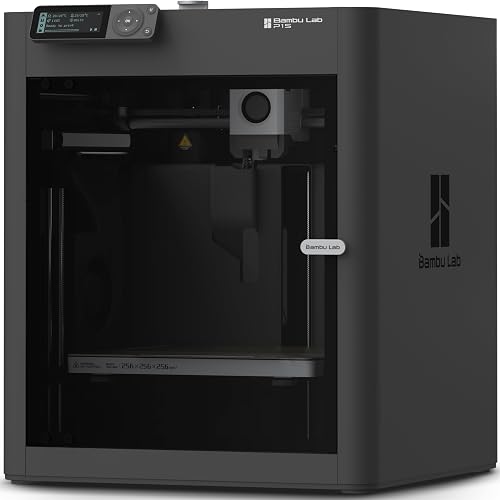
Bambu Lab P1S: for beginners planning beyond basic materials
Choose the P1S when an enclosed print area serves a real material need, especially if ABS or ASA is part of your longer-term plan.
Bambu Lab P1S
- Enclosed body
- Automatic bed leveling
- Bambu Lab claims 15-minute setup
- AMS needed for multi-color printing
Choose the P1S if your plans extend beyond basic projects to materials such as ABS and ASA that benefit from an enclosed print area.
Pros
- Enclosed body
- Automatic bed leveling
- Supports PLA, PETG, ABS and ASA
Cons
- AMS required for multi-color printing
- Heavy to move between workspaces
The enclosed body makes this a more purposeful choice for those materials than buying a covered machine only for its appearance. Automatic bed leveling reduces one early setup task, and Bambu Lab describes setup as taking about 15 minutes.
Material support includes PLA, PETG, TPU, ABS and ASA, with PA and PC described as capable options. Carbon- or glass-fiber-reinforced polymers are not recommended for this configuration.
That range gives you room to learn, but each new material still needs suitable settings, storage and ventilation. Start with an easier filament before changing several parts of the process at once.
Skip the P1S if your plans stop at simple PLA projects and an enclosure brings little value to your workspace. Its 38.9 lb weight also favors a permanent spot.
Multi-color printing requires Bambu Lab AMS. Read our enclosed vs open-frame printer comparison before deciding whether the enclosure is worth prioritizing.
Bambu Lab A1 mini: for small creative projects
Choose the A1 mini for a compact creative setup, particularly if decorative objects and compatible lamp projects interest you.
Bambu Lab A1 mini
- Automatic calibration
- Simple setup
- Compact design
- Includes LED Lamp Kit
The compact A1 mini suits small creative projects, with an included LED Lamp Kit that gives beginners a specific project to work toward.
Pros
- Automatic calibration
- MakerWorld model access and Bambu Handy app
- Includes LED Lamp Kit
Cons
- Lamp projects require compatible models
- Check model fit before choosing it for larger objects
The included LED Lamp Kit gives this package a clear starting project. Pick a model designed for the kit, and follow its assembly instructions rather than assuming any printed lampshade will fit.
Automatic calibration and simple setup reduce the machine adjustments you need to learn first. MakerWorld provides models, while the Bambu Handy app lets you manage prints within the same ecosystem.
The printer measures 15.21 x 16.77 x 17.94 inches and weighs 12.1 lb. Those dimensions help you plan placement, but leave extra room for movement, filament routing and removing finished objects.
Skip it if large single-piece prints drive your decision until you've checked that your chosen models fit its usable build area. A compact body and a suitable build volume are separate requirements.
For another overview of first-machine priorities, see our beginner 3D printer picks. Choose around your likely projects rather than the appeal of a small printer alone.
Anycubic Kobra X: for colorful models and gifts
Choose the Kobra X when color is central to what you want to make, such as signs, decorative models and personalized gifts.
Anycubic Kobra X

- Built-in 4-color printing
- 49-point auto bed leveling
- 260 x 260 x 260 mm print size
- Filament sold separately
The Kobra X suits beginners whose main goal is colorful signs, models and gifts, with four-color capability built into the printer.
Pros
- Four colors built in
- 49-point auto bed leveling
- Spaghetti and foreign-object detection
Cons
- Filament is not included
- Color changes add settings and material handling to learn
Its four-color capability is built in, so your first four colors do not require a separate color unit. The 260 x 260 x 260 mm build area also leaves room for larger projects.
LeviQ 3.0 provides 49-point automatic bed leveling. App control, spaghetti detection and foreign-object detection add ways to follow a print and identify problems, but keep watching the first layer yourself.
Filament is not included, so add compatible material to your starter supplies. Begin with one color, learn loading and removal, then try a small design with a few color changes.
Skip it if most of your projects are plain functional parts and you do not want to manage extra color choices. Multicolor designs can use additional filament during changes, so review the sliced job before committing.
Our explanation of what AMS means on a 3D printer helps you understand how color-feeding systems change the printing process.
Flashforge Adventurer 5M: for practical parts and nozzle options
Choose the Adventurer 5M for practical projects when automatic leveling and room to explore nozzle sizes matter more than a larger build area.
Flashforge Adventurer 5M
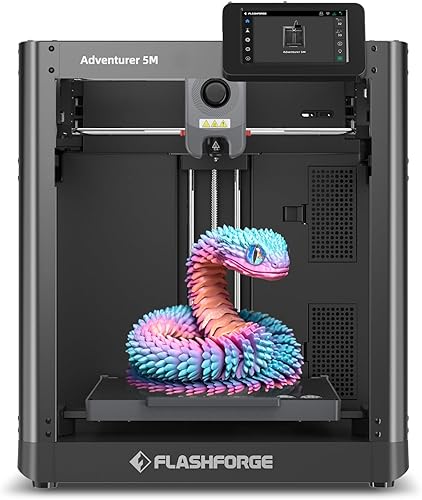
- Automatic bed leveling
- One-click printing
- Real-time app monitoring
- 220 x 220 x 220 mm print size
The Adventurer 5M suits beginners focused on making parts, with automatic leveling and optional nozzle sizes for different detail needs.
Pros
- Automatic bed leveling
- Quick-change nozzle design
- Remote monitoring through Flash Studio
Cons
- Less build space than the A1 and Kobra X
- Alternative nozzle sizes are optional
Its 220 x 220 x 220 mm print size suits objects that fit within that space, including many small organizers and project parts. Measure your largest planned model before deciding the available area is enough.
The printer includes a 0.4 mm nozzle and accepts optional sizes from 0.25 mm to 0.8 mm. Smaller nozzles can help with fine features, while larger ones suit broader lines and less delicate work.
Stay with the included nozzle while learning. Changing nozzle size also calls for the right slicer profile, so it should solve a specific project need.
The quick-change nozzle design and dual-sided PEI platform are useful features for routine work. Flash Studio adds progress monitoring, settings adjustments and status alerts.
Skip it if your planned single-piece models exceed its build space. Our Flashforge Adventurer 5M comparison with the Bambu Lab A1 helps narrow that choice.
Creality Ender 3 V3 SE: for learning assembly and upkeep
Choose the Ender 3 V3 SE if learning the machine is part of the hobby, and you are comfortable completing assembly before printing.
Creality Ender 3 V3 SE

- CR Touch auto leveling
- Automatic Z-offset calibration
- PLA, PETG and TPU support
- Flexible PC spring steel build plate
The Ender 3 V3 SE suits beginners willing to assemble their machine and learn routine care while using automatic first-layer setup aids.
Pros
- Auto leveling and Z-offset calibration
- Supports PLA, PETG and TPU
- Flexible plate helps remove prints
Cons
- Requires assembly
- Assembly needs careful alignment before the first print
Creality describes assembly as a few simple steps. Take time to check alignment, fasteners and cable routing before starting calibration, because automatic adjustments cannot correct a poorly assembled frame.
CR Touch auto leveling and automatic Z-offset reduce first-layer setup work. The Sprite Direct Drive Extruder supports PLA, PETG and TPU, giving you a path from basic prints to more flexible projects.
The flexible PC spring steel plate helps with removal. Let the plate and object cool as directed before flexing it, rather than pulling hard on a hot print.
Dual synchronized Z-axis lead screws and Y-axis linear shafts form part of the motion system. Learning how these parts move will help you recognize loose hardware or an obstruction during routine care.
Skip it if you want the fewest assembly tasks possible. Our Creality Ender 3 V3 SE review covers this model in more detail.
Elegoo Centauri 2: for guided preparation before each job
Choose the Centauri 2 if you want help preparing each print, with pre-print checks and accessible controls as your main priorities.
Elegoo Centauri 2

- Automatic calibration
- Smart pre-print checks
- 5-inch touchscreen
- Nexprint model library
The Centauri 2 suits beginners who want pre-print checks, accessible controls and connected tools for finding, preparing and monitoring models.
Pros
- Automatic calibration and pre-print checks
- 5-inch touchscreen
- Maintenance access through a magnetic printhead cover
Cons
- 30.1 lb weight makes frequent moves less convenient
Automatic calibration includes Z-offset and pressure advance, while vibration compensation addresses motion-related surface defects. These features handle machine adjustments, leaving you to focus on model orientation, material choice and supports.
The 5-inch touchscreen provides local controls. Nexprint supplies models, ElegooSlicer prepares files, and the ELEGOO Matrix app handles remote monitoring.
That workflow suits a beginner who wants a clear route from finding an object to starting a print. Still review each file's material and nozzle requirements before using it.
A magnetic printhead cover, semi-automatic belt tensioner and nozzle wiper provide useful maintenance features. Follow Elegoo's care instructions instead of adjusting belt tension simply because a control is accessible.
Skip it for a workspace that requires frequent packing away, since it weighs 30.1 lb. Choose it for its preparation tools rather than assuming automatic checks remove the need to inspect the bed and filament.
What matters most when choosing your first 3D printer?
Choose around project fit, setup help and material needs before considering speed or accessories. A printer that fits your routine is more useful than one with features you rarely use.
What makes the best beginner 3D printer easy to use?
The best beginner 3D printer reduces repetitive machine adjustments while keeping basic tasks clear. Automatic leveling helps, but accessible loading, understandable controls and a suitable slicer profile matter too.
A slicer turns a model into instructions for your printer. You can begin with ready-made models, so learning computer-aided design is not a requirement for your first useful print.
Check the difference between downloading a model and downloading a ready-prepared print file. A prepared file must match your machine, nozzle, build plate and filament.
How much build space do your projects need?
Choose enough space for your largest likely object, including any brim or supports around it. Check width, depth and height separately rather than comparing only a single headline dimension.
Splitting a model can let a smaller printer make a larger object, but it adds joining and finishing work. For fitted parts, confirm that the designer allows for assembly and hardware.
Avoid scaling a functional model just to fit the bed. Shrinking a bracket also shrinks its screw holes, slots and clearances.
Should speed affect your decision?
Treat maximum speed as a secondary feature, because finished print time depends on the model, material, layer height and motion settings. Short moves and detailed surfaces may never use the maximum figure.
Compare estimated times in the slicer using sensible profiles. A slightly slower job that finishes correctly wastes less time than restarting a failed print.
Is multi-color worth learning immediately?
Start with one color unless the project depends on color changes. You can learn bed adhesion, orientation and removal without also managing several spools.
When you add colors, look at the number of changes and the total material estimate. A small object with frequent changes can involve more waste and waiting than its size suggests.
Which filament should you buy first?
PLA is usually the simplest starting point for ordinary indoor models on a compatible printer. Choose one standard spool and the matching profile before exploring specialty blends.
Move to PETG when its properties suit the object, and approach flexible materials after you understand loading and print speed. Our guide to 3D printer filament for beginners explains the tradeoffs.
None of these recommendations replaces checking the exact material requirements. A printer's nozzle temperature alone does not establish that every filament is suitable.
How should you prepare your workspace?
Use a stable surface with clearance, ventilation and easy access to the printer. Measure the operating space rather than treating the machine's outer dimensions as the full requirement.
Allow room for the moving bed or printhead, spool placement and cables. You should be able to remove the build plate and reach routine service points without moving the printer each time.
Keep loose items away from moving parts. Hot nozzles and beds also call for a placement that children and pets cannot casually reach.
An enclosed body does not replace material-specific ventilation guidance. For more placement advice, see 3D printers for home use.
How do you get from unboxing to a useful first print?
Follow the setup sequence, then print one small, simple object using a matching profile. Save large decorative models and long jobs until you understand the basic workflow.
- Complete the physical setup. Remove transport restraints, assemble required parts and check connections according to the manual.
- Run the required calibration. Use the printer's guided process before trying to adjust settings yourself.
- Load compatible filament. Route the spool so it turns freely without catching on cables or nearby objects.
- Choose a simple model. A flat-bottomed tray or cable clip avoids the added work of supports.
- Review the slicer preview. Confirm the printer, nozzle and filament profiles, then check scale, orientation and estimated material use.
- Watch the first layer. Stop if lines drag loose or filament gathers around the nozzle instead of forming the model.
- Let the print cool. Remove it as directed, clear scraps and inspect it before starting another job.
Keep notes on changes that help. Adjust one setting at a time so you can tell what caused the difference.
For a fuller walkthrough of model preparation and filament deposition, read how a 3D printer works.
What routine care prevents avoidable print problems?
Keep the build surface clean, filament dry and motion path clear. Those habits address common problems that automatic calibration cannot remove.
Handle the build plate by its edges where possible, since finger oils can reduce adhesion. Use the cleaning method approved for that surface rather than applying a strong cleaner by habit.
Store open filament in a sealed container or bag with suitable desiccant. Popping during extrusion, stringing or rough surfaces can have several causes, including moisture, so inspect the material before changing many settings.
Remove loose scraps before each print and check that the spool turns freely. Follow the manual's service intervals for lubrication, belts and nozzle care; more adjustment is not always better.
Which beginner mistakes waste the most time?
The biggest mistakes are using the wrong profile, changing too much at once and ignoring the first layer. Start with the printer's recommended defaults and solve one issue at a time.
Printing a large model first makes failures harder to diagnose and wastes more material. Learn on short jobs before filling the whole build plate.
Do not add dense infill automatically to make every part stronger. Orientation, wall thickness and the direction of the load also matter, especially for functional objects.
Supports need planning too. Check where they touch the model and whether you can remove them from enclosed spaces before starting the job.
Keep early projects away from safety-critical uses such as load-bearing mounts or protective equipment. A print that looks clean can still be weak between layers.
Which beginner 3D printer should you choose?
Choose the best 3D printer for beginners by your first projects: the A1 for varied home making, the P1S for enclosure-dependent material plans, or the A1 mini for smaller creative work.
Pick the Kobra X if colorful gifts are the main goal. Choose the Adventurer 5M for practical parts and nozzle options, the Ender 3 V3 SE to learn assembly and upkeep, or the Centauri 2 for guided print preparation.
Before ordering, check one real model's size, choose its filament and measure your workspace. Read how much a 3D printer costs to plan for material, routine supplies and any color hardware alongside the machine.
Our top 3 picks at a glance
-
1
-
2
-
3
Frequently asked questions
What is the best 3D printer for beginners?
The Bambu Lab A1 is our first choice for most beginners because its automatic calibration reduces setup work and its build area suits varied home projects. Choose the P1S if your material plans call for an enclosed body, or the Kobra X if colorful prints are your main goal.
Should a beginner get an enclosed 3D printer?
Choose an enclosed printer when your planned materials benefit from a more controlled print environment. The P1S fits that need, but a beginner starting with PLA does not need an enclosure just to learn.
Follow material ventilation guidance because an enclosed body does not make every room suitable for printing.
Is automatic bed leveling useful for a first 3D printer?
Yes, automatic bed leveling reduces manual adjustments by measuring the bed and helping the printer account for surface variation. It does not clean the plate or fix poor filament settings.
Keep the build surface clean, use the correct plate profile and watch the first layer before leaving the printer to continue.
What should I print first on a 3D printer?
Start with a small, flat-bottomed model that needs no supports, such as a simple tray or cable clip. Use the correct printer and filament profile, then watch how the first layer forms.
Our guide to what you can make with a 3D printer offers more ideas once you understand the basic workflow.
Do beginner 3D printers print in multiple colors?
Some do, but the required hardware differs. The A1 needs AMS lite, while the P1S needs Bambu Lab AMS; the Kobra X has four-color capability built in.
Color changes can add print time and waste, so begin with a simple design and check the slicer's material estimate before starting.