Creality Ender 3 V3 SE Review: Budget Auto-Leveling Printer (October 2026)
The Creality Ender 3 V3 SE suits budget-minded beginners who want automatic first-layer setup and room to learn different filaments. Choose it if you're comfortable with assembly and basic print preparation; consider the alternatives below for app-led projects or easier nozzle changes.
On this page (10 sections)
- Creality Ender 3 V3 SE review: who should buy it?
- What does auto leveling handle, and what remains your job?
- Which filament should you use first?
- How much setup does the Ender 3 V3 SE need?
- What do its speed and motion features mean for real projects?
- How should you care for the plate and moving parts?
- What should you check before ordering?
- Which alternative better matches your projects?
- Which common beginner mistakes should you avoid?
- Should you choose the Creality Ender 3 V3 SE?
The Creality Ender 3 V3 SE is a sensible budget printer for beginners who want help with first-layer setup and are willing to learn print preparation. Its direct drive extruder also gives you a path from basic PLA models to PETG parts and flexible TPU projects.
Buy it for that learning path, rather than its speed headline alone. You'll still need to assemble the machine, prepare files in a slicer and recognize when a print needs attention.
Creality Ender 3 V3 SE review: who should buy it?
The Ender 3 V3 SE fits patient first-time makers who want to learn how material, model shape and settings affect a print. It makes particular sense if flexible parts are among your planned projects.
Creality Ender 3 V3 SE

- CR Touch auto leveling
- Automatic Z-offset calibration
- Sprite direct drive extruder
- Flexible PC spring steel build plate
A budget-oriented printer for learning everyday models and flexible parts. Automated first-layer setup reduces manual adjustment while you learn file preparation and material settings.
Pros
- Auto leveling and automatic Z-offset reduce manual setup
- Direct drive supports PLA, PETG and TPU
- Flexible plate helps release finished models
- Dual synchronized Z-axis lead screws support stable motion
Cons
- Requires assembly and basic print preparation
- Needs workspace beyond its body dimensions for access and movement
- Maximum speed depends on material and settings
Good starter projects include cable guides, small organizers and simple model parts. These let you practice orientation, wall thickness and bed adhesion without committing much filament to each attempt.
Skip it if you want a printer to behave like a household appliance with little preparation. Automated calibration handles part of the work, but it doesn't choose a suitable model orientation or decide whether a thin part needs more walls.
Also pause if you need one specific large object. Confirm that the usable build volume can hold it in a workable orientation before choosing any printer.
Our best 3D printers for beginners guide helps compare options around your first projects.
Why the Creality Ender 3 V3 SE earns 7.7
Its 7.7 score reflects a useful mix of automated first-layer setup, material support and practical print removal. Assembly and the need to learn file preparation make it a better fit for an involved beginner than someone seeking minimal setup work.
The buying question is how you want to spend your time. Choose the Ender if learning the process is part of the appeal; give more weight to model libraries and connected controls if your main interest is making ready-designed objects.
What does auto leveling handle, and what remains your job?
CR Touch auto leveling and automatic Z-offset calibration help account for bed height differences and set the nozzle's starting gap. They reduce manual adjustment, especially while you're learning what a good first layer looks like.
Your job is to provide a clean, correctly seated plate and unobstructed filament flow. A calibration routine can't remove finger oils or untangle a spool.
Watch for first-layer lines that join into an even surface. Loose strands can point to poor adhesion, while heavily ridged or scraped areas can indicate a nozzle gap that needs attention.
Don't respond to every failed start by changing the Z-offset. Check plate cleanliness, the selected material profile and filament flow first, then make one adjustment at a time.
Our guide to how to level a 3D printer explains the checks that help separate a height problem from an adhesion problem.
Which filament should you use first?
Start with PLA, then move to another material when a project needs it. The Sprite direct drive extruder supports PLA, PETG and TPU, but each needs its own settings.
PLA is a useful starting point for learning dimensions, supports and model orientation. Keep the first few models small so a mistake costs minutes rather than an evening.
PETG is worth considering for practical parts that need its material properties. Check the filament maker's temperature advice and build-surface guidance, since adhesion and removal can differ from PLA.
TPU suits flexible items such as soft bumpers or grips. Use a conservative material profile and keep the spool path free of drag, since flexible filament can buckle when feeding meets resistance.
Store opened spools dry according to their care instructions. Popping, rough extrusion or stringing can be reasons to check filament condition before making large changes to the printer.
Use our beginner filament guide to choose a material around the part's purpose, rather than choosing a spool by color alone.
How much setup does the Ender 3 V3 SE need?
Plan for assembly, calibration and a short first print before starting a large project. Creality describes assembly as a few simple steps, but careful alignment and cable routing still matter.
- Choose a stable work surface. Leave room for moving parts, the spool, cables and your hands.
- Follow the assembly sequence. Check fasteners as directed without forcing parts into alignment.
- Check cable clearance. Nothing should catch or pull tight as the machine moves.
- Prepare the plate and load filament. Follow Creality's instructions for both.
- Run calibration. Use the recommended starting profile for your chosen material.
- Print a small model. Watch the first layer before moving on to a longer job.
In the slicer, confirm the printer profile, material profile, model scale and orientation. A file that looks fine on screen can still need supports or a different face against the bed.
Preview the sliced layers before starting. Look for unsupported sections, unexpectedly thin walls and dimensions that don't match the intended part.
The guide to how 3D printers work explains how the model, slicer and printer fit together. For a fuller starting checklist, use our complete beginner buying guide.
What do its speed and motion features mean for real projects?
Use the slicer's estimated job time to judge whether a project fits your schedule. Creality states speeds up to 250 mm/s with 2,500 mm/s² acceleration, using compatible materials and recommended settings.
Short edges, curves and small details give the printer less room to reach its maximum speed. Layer height, wall count, supports and infill also change completion time.
For an organizer or prototype, reducing unnecessary infill may be more useful than pushing every movement faster. For a fitted part, preserve the wall thickness and detail the design needs.
Dual synchronized Z-axis lead screws and precision Y-axis linear shafts support the motion system. Creality says they help reduce vibration and Z wobble, but careful assembly and a stable table remain worthwhile.
Don't chase speed while solving a first-layer problem. Establish a repeatable print with the normal profile, then adjust settings for a clear reason.
How should you care for the plate and moving parts?
Keep the plate clean and follow the maintenance schedule rather than waiting for a failed print. The flexible PC spring steel build plate helps release finished models when used as directed.
Let the plate and part cool as instructed before removal. Avoid prying with excessive force, and use only cleaning methods suitable for its surface.
Handle the plate by its edges when possible. Before reinstalling it, check for scraps underneath that could stop it from sitting flat.
Check the filament path, cables and visible fasteners during routine care. Inspect belts and motion parts using Creality's guidance, and use the specified lubricant only where directed.
The 32-bit silent mainboard helps reduce operating noise, but fans and motion can still be audible. If the printer shares a workroom, our guide to making a 3D printer quieter covers placement and vibration checks.
What should you check before ordering?
Check model fit and workspace first, because neither is solved by automatic leveling. The Ender 3 V3 SE weighs 19.8 lb and measures 15 x 19.6 x 15 inches.
Those body dimensions aren't a complete clearance plan. Allow access for loading filament, removing the plate and servicing the machine, plus room for its moving parts.
For a must-make object, compare the actual model dimensions with usable build volume. Rotating a part may help it fit, but can also add supports or change strength along the printed layers.
Plan for filament and ordinary wear parts as part of ownership. Start with supplies for the projects you already have in mind instead of buying several materials and upgrades at once.
For a broader comparison, our guide to Bambu Lab, Creality, Elegoo and Anycubic helps you weigh brand workflows alongside hardware.
Which alternative better matches your projects?
Choose an alternative for a specific workflow advantage, such as ready-made project discovery, nozzle changes or routine pre-print checks. A larger speed number alone isn't a strong reason to switch.
Bambu Lab A1 mini: for guided creative projects
Bambu Lab A1 mini

- Automatic calibration
- Simple setup
- MakerWorld model library
- Included LED Lamp Kit
A compact alternative for beginners who want ready-to-print models and app-based print management. The included LED Lamp Kit gives decorative projects a clear starting point.
Pros
- Automatic calibration and simple setup
- MakerWorld access for ready-to-print models
- Print management through Bambu Handy
- LED Lamp Kit for compatible light projects
Cons
- Check usable build volume against your planned models
- Lamp kit adds little value if you only want practical parts
The A1 mini suits beginners who want a clear path from finding a design to starting a print. It combines automatic calibration and simple setup with MakerWorld models and print management through Bambu Handy.
The included LED Lamp Kit gives decorative light projects a useful starting point. Choose compatible lamp designs and follow the kit's assembly guidance.
Skip this bundle if the lamp kit doesn't interest you and your main goal is one large practical part. Check that part against the printer's usable build volume before letting the compact design decide the purchase.
Flashforge Adventurer 5M: for changing print detail
Flashforge Adventurer 5M
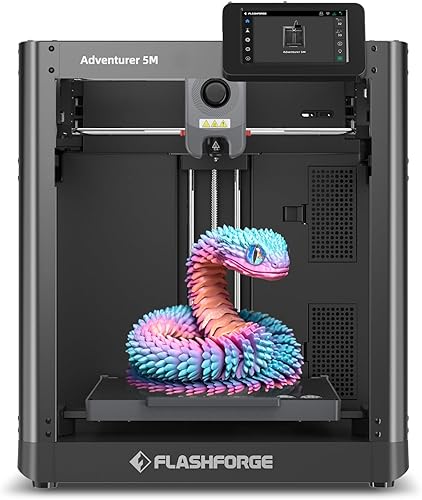
- Fully automatic bed leveling
- CoreXY structure
- Quick-change nozzle
- 220 x 220 x 220 mm print size
A CoreXY alternative for makers who want to change nozzle sizes as their projects change. Its defined print volume also makes it easier to check whether a planned part will fit.
Pros
- Automatic bed leveling
- Quick nozzle changes
- Optional nozzle sizes from 0.25 to 0.8 mm
- Remote monitoring and status alerts
Cons
- Optional nozzle sizes require separate selection
- Maximum travel speed is not a measure of finished-print speed
- Confirm material compatibility for your projects
The Adventurer 5M suits makers who expect to change nozzle sizes for different projects. It has a quick-change nozzle system, a standard 0.4 mm nozzle and optional sizes from 0.25 to 0.8 mm.
In general, smaller nozzles suit finer detail, while larger ones can suit thicker extrusion lines. Each change needs the matching slicer profile.
Its CoreXY structure, automatic bed leveling and 220 x 220 x 220 mm print size make it worth comparing for repeated practical parts. Flashforge's 600 mm/s figure is a maximum travel speed, so don't compare it directly with the Ender's print-speed figure.
Skip it if you won't use its nozzle options and your existing choice fits your projects. Our Flashforge Adventurer 5M review covers that decision in more detail.
Elegoo Centauri 2: for a repeatable daily workflow
Elegoo Centauri 2

- Automatic calibration
- Smart pre-print checks
- 5-inch touchscreen
- Maintenance access features
Consider this for a repeatable workflow built around pre-print checks, touchscreen controls and remote monitoring. Its printhead cover, belt tensioner and nozzle wiper also address routine care.
Pros
- Automatic calibration and smart pre-print checks
- 5-inch touchscreen
- Remote monitoring through ELEGOO Matrix
- Magnetic printhead cover and semi-automatic belt tensioner
Cons
- Check usable build volume against your planned models
- At 30.1 lb, it suits a permanent workspace better than frequent moves
The Centauri 2 suits buyers who value checks before each job and accessible controls. Automatic calibration, smart pre-print checks and a 5-inch touchscreen support that workflow.
Nexprint provides model discovery, ElegooSlicer handles file preparation and ELEGOO Matrix supports remote monitoring. Its magnetic printhead cover, semi-automatic belt tensioner and nozzle wiper address routine maintenance tasks.
Elegoo states speeds up to 500 mm/s, supported by a CoreXY system. Choose it for the overall workflow rather than assuming that figure will halve every job.
Skip it if you need to move the printer often. At 30.1 lb, it calls for a planned, stable workspace.
Which common beginner mistakes should you avoid?
Keep the first projects simple and change one variable at a time. That makes it easier to understand why a result improved or failed.
- Starting with a large model: prove the material profile on a small part before committing to a long job.
- Ignoring orientation: the face placed on the bed affects supports, surface finish and strength.
- Using one profile for every spool: match the material and follow its recommended settings.
- Touching the print surface: oils can interfere with adhesion even when leveling is correct.
- Changing several settings together: record each change so you can keep what helped.
- Buying upgrades before finding a problem: learn the stock setup before adding parts with their own setup demands.
Keep notes on the material, profile and any changes for useful prints. A saved profile and a short note can make a repeat job much easier.
Should you choose the Creality Ender 3 V3 SE?
Choose the Creality Ender 3 V3 SE for learning practical printing, especially if flexible parts are on your project list. First confirm model fit and workspace, then decide whether assembly and slicer practice suit how you want to spend your time.
Pick the A1 mini if ready-to-print creative projects and app controls are your priority. Choose the Adventurer 5M for frequent nozzle changes, or the Centauri 2 if pre-print checks and routine maintenance features matter most.
If none of those differences solves a need you have, keep the decision simple. Use our cheap 3D printer guide to compare budget choices around the objects you actually plan to make.
Frequently asked questions
Is the Creality Ender 3 V3 SE good for beginners?
Yes, the Creality Ender 3 V3 SE suits beginners who are willing to assemble a printer and learn basic file preparation. Its automatic leveling and Z-offset calibration reduce manual first-layer adjustments.
Start with a small PLA model, watch the first layer, and change one setting at a time when solving problems.
Does the Ender 3 V3 SE support TPU?
Yes, its Sprite direct drive extruder supports TPU, along with PLA and PETG. Flexible filament needs a clear feed path and settings suited to the spool.
Begin with a small, simple part and a conservative material profile before attempting long prints or models with many retractions.
How fast can the Ender 3 V3 SE print?
Creality states a maximum print speed of 250 mm/s with 2,500 mm/s² acceleration under suitable conditions. Actual job time depends on model shape, layer height, material and slicer settings.
Compare estimated completion times for the same model and quality settings instead of choosing a printer by its maximum speed alone.
Does the Ender 3 V3 SE have auto leveling?
Yes, it has CR Touch auto leveling and automatic Z-offset calibration to help set up the first layer. These features reduce manual adjustment, but the plate still needs proper cleaning and installation.
If a print fails to stick, check the surface, filament flow and material profile before changing several settings.


