5 Best Cheap 3D Printers That Are Worth Buying (October 2026)
The best affordable 3D printers include the Bambu Lab A1 mini for first-time home makers, the Flashforge Adventurer 5M for frequent project makers, and the Creality Ender 3 V3 SE for exploring different filaments.
On this page (9 sections)
- Which cheap 3D printer is right for you?
- How we chose these affordable 3D printers
- Best cheap 3D printers by use
- How do you choose the best cheap 3D printer for your projects?
- What else belongs in your printer budget?
- How should you set up your first cheap 3D printer?
- What care helps a budget printer keep working well?
- Which beginner mistakes waste the most filament?
- Which cheap 3D printer should you buy?
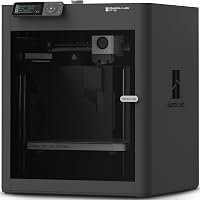
The Bambu Lab A1 mini is our best cheap 3D printer pick for beginners who want simple setup and automatic calibration. The other picks suit different priorities, including frequent printing, learning new filaments, guided preparation and colorful projects.
Start with 3 objects you actually want to make. Their size, material needs and color requirements will tell you more about the right printer than a maximum speed figure.
For a broader first-purchase overview, see our 3D printer beginner buying guide. If your budget has a firm ceiling, our best 3D printers under 300 dollars guide focuses on that budget tier.
Our picks at a glance
-
1

-
2
-
3

Which cheap 3D printer is right for you?
Choose the A1 mini for a simple first setup, the Adventurer 5M for frequent project work, or the Ender 3 V3 SE for learning different materials. The Centauri 2 suits buyers who want guided preparation, while the SPARKX i7 Nano Combo fits projects where color matters.
Use the comparison to remove printers that do not match your intended workflow. A lower-ranked model can be the better choice when its main feature solves a problem you already have.
| Product | Best for | Setup | Project focus | Workflow | Our score |
|---|---|---|---|---|---|
| Bambu Lab A1 mini | first-time home makers | Automatic calibration | Everyday prints and compatible lamps | MakerWorld and Bambu Handy | 8.1 |
| Flashforge Adventurer 5M | frequent project makers | Automatic bed leveling | Parts within a 220 mm cube | Flash Studio remote controls | 7.9 |
| Creality Ender 3 V3 SE | exploring different filaments | CR Touch leveling and automatic Z-offset | PLA, PETG and TPU projects | Few-step assembly and flexible build plate | 7.7 |
| Elegoo Centauri 2 | guided print preparation | Automatic calibration and pre-print checks | Models and everyday projects | ElegooSlicer and ELEGOO Matrix | 7.6 |
| Creality SPARKX i7 Nano Combo | colorful gifts | Automatic bed leveling | Multicolor models and gifts | Automatic filament handling and Creality Cloud | 6.9 |
How we chose these affordable 3D printers
We compared setup help, project fit, material options and everyday controls for buyers trying to keep their first printer practical. We gave more weight to features that help you start and finish useful objects than to maximum speed alone.
The scores reflect different fits within this group, rather than a promise about every print. A simple printer can serve a beginner better than a more involved machine with features they rarely use.
Our guide to choosing a 3D printer explains how size, enclosure and color affect the decision. Use it if you are still deciding what kind of printer belongs in your home.
Best cheap 3D printers by use
The A1 mini is the starting point for a general beginner, but each alternative has a clear reason to consider it. Read the sections with your planned objects in mind, especially the reasons to skip each model.
Bambu Lab A1 mini
- Automatic calibration
- Simple setup
- Compact design
- LED lamp kit included
A straightforward first printer for home projects, with automatic calibration and access to ready-to-print models. The included LED lamp kit gives beginners a specific project to work toward.
Pros
- Automatic calibration simplifies preparation
- Compact design suits smaller work areas
- LED lamp kit supports compatible light projects
Cons
- Check build volume against your planned models
Bambu Lab A1 mini: best cheap 3D printer for a simple start
Choose the A1 mini if you want your first projects to be small, manageable steps toward learning the process. Automatic calibration and simple setup let you focus on choosing a model, preparing the file and understanding the first layer.
MakerWorld supplies ready-to-print models, and Bambu Handy lets you manage prints through an app. A model library is useful when you want to begin with an existing design before learning to draw your own parts.
The included LED lamp kit gives this version a specific creative purpose. Pick a compatible lamp model and follow its assembly instructions, especially where the printed parts must fit around the light components.
Its compact design makes it worth considering for a smaller work area. Still, choose a spot with room to load filament and remove prints without moving the printer each time.
Skip it if you need a particular large part in one piece until you have checked its build volume against that model. Do the same check for any fitted project, since the name of a printer does not tell you whether your chosen file fits.
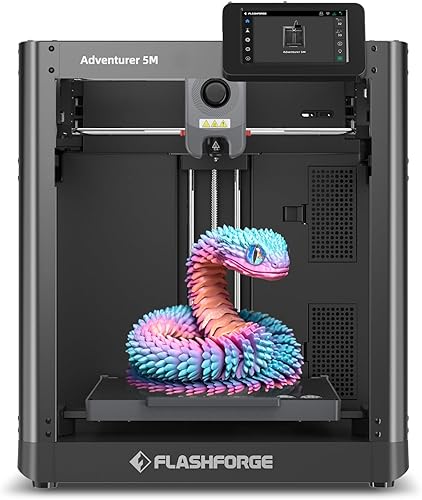
Flashforge Adventurer 5M
- 220 x 220 x 220 mm print size
- Automatic bed leveling
- Quick-change nozzle
- Remote app monitoring
A practical choice for frequent printing, with a defined build area, a quick-change nozzle and a dual-sided PEI platform. Remote controls help you follow jobs between visits to the printer.
Pros
- Clear build dimensions for planning parts
- Quick nozzle changes
- Dual-sided PEI platform
Cons
- Optional nozzle sizes require separate selection
- Maximum travel speed is not a finished-print estimate
Flashforge Adventurer 5M: for a steady queue of projects
Choose the Adventurer 5M if you expect to print often and want convenient nozzle and build-plate handling. Its 220 x 220 x 220 mm build area gives you a clear starting point for planning organizers, models and prototype parts.
Automatic bed leveling handles preparation, while the dual-sided PEI platform supports print removal. The quick-change nozzle is useful if you later want to move between finer detail and broader extrusion paths.
A standard 0.4 mm nozzle is included, with optional sizes from 0.25 to 0.8 mm. Change the nozzle setting in your slicer whenever you change hardware so the file matches the installed part.
The CoreXY structure has a maximum travel speed of 600 mm/s, and Flash Studio provides remote controls and status alerts. Use the slicer's time estimate for your actual model when deciding whether a job fits your day.
Skip it if your essential parts exceed its build area and you do not want to split them into sections. For a first printer, you also do not need extra nozzle sizes immediately; learn the included setup before adding another variable.
Creality Ender 3 V3 SE
- Sprite direct drive extruder
- PLA, PETG and TPU support
- Automatic Z-offset calibration
- Flexible PC spring steel build plate
Choose this printer if you want to learn common rigid and flexible filaments. Automatic leveling and Z-offset calibration help with preparation, while the flexible plate supports print removal.
Pros
- Named support for three common filaments
- Automatic Z-offset calibration
- Flexible build plate
Cons
- Requires assembly in a few steps
- Different filaments still need separate settings
Creality Ender 3 V3 SE: for learning beyond basic rigid prints
Choose the Ender 3 V3 SE if you want to begin with simple objects and later explore different material behavior. Its Sprite direct drive extruder supports PLA, PETG and TPU, giving you a path from rigid prints toward flexible projects.
CR Touch auto leveling and automatic Z-offset calibration help establish the first layer. The printer requires a few assembly steps, so allow time to follow the instructions and check the frame before starting a job.
Its flexible PC spring steel plate helps release finished prints. Let a print cool and follow the plate-care instructions instead of forcing a warm object off with a sharp tool.
Creality says the synchronized Z-axis lead screws and Y-axis linear shafts help reduce vibration and wobble. Those features support motion, but careful assembly and a firm surface still matter.
Skip it if you want to avoid assembly altogether. It is a better match for someone willing to learn setup details and material profiles than someone who wants to change several filaments immediately without adjusting settings.
For the relationship between leveling, nozzle height and adhesion, read how to level a 3D printer.
Elegoo Centauri 2

- Automatic calibration
- Smart pre-print checks
- 5-inch touchscreen
- Remote monitoring
A fit for buyers who want preparation checks and on-printer controls built into their routine. Maintenance features include a nozzle wiper, magnetic printhead cover and semi-automatic belt tensioner.
Pros
- Smart checks before each job
- Touchscreen controls
- Accessible maintenance features
Cons
- Heaviest pick at 30.1 lb
- Needs a sturdy, permanent work area
Elegoo Centauri 2: for a guided preparation routine
Choose the Centauri 2 if you want preparation checks built into each job and prefer controls on the printer itself. Automatic calibration, smart pre-print checks and a 5-inch touchscreen support that routine.
Nexprint provides model discovery, ElegooSlicer prepares files, and the ELEGOO Matrix app supports remote monitoring. That gives you a defined route from finding an object to following its progress.
The CoreXY system has a stated maximum speed of 500 mm/s. Elegoo also uses vibration compensation and pressure advance calibration to address surface detail and extrusion control during printing.
The maintenance features deserve attention if you plan to use the machine regularly. A magnetic printhead cover, semi-automatic belt tensioner and nozzle wiper provide specific ways to handle routine care.
Skip it if you must move your printer between storage and a desk after every use. At 30.1 lb, it is the heaviest pick here and makes more sense on a sturdy surface where it can stay.
Guided checks are most useful when you also build good habits around them. Confirm that the plate is clean, the correct filament is loaded and the file uses the right printer profile before starting.
Creality SPARKX i7 Nano Combo

- Multicolor printing
- Auto feed and retract
- Auto refill
- AI camera monitoring
Choose the Nano Combo when color changes are central to the objects you want to make. Automatic filament handling and backup-spool refill support that workflow.
Pros
- Built-in multicolor workflow
- Automatic backup-spool switching
- Tool-free replacement of key modules
Cons
- Color changes can add time and filament waste
- Extra filament handling is unnecessary for single-color projects
Creality SPARKX i7 Nano Combo: for designs that depend on color
Choose the SPARKX i7 Nano Combo if you already have multicolor models or gifts in mind. Automatic feed and retract handle loading and unloading, while auto refill can switch to a backup spool when filament runs out.
Refill and color changes solve different problems. A backup spool helps a long job continue; a color change adds a visual feature to the object.
Automatic bed leveling supports setup, and the built-in AI camera allows remote monitoring. Creality says the camera can detect common print issues, so treat alerts as help alongside your own progress checks.
Tool-free replacement of the hotend, extruder and cutter gives you a modular approach to maintenance. Creality Cloud adds model discovery and remote print management over WiFi.
Skip it if most of your planned objects are single-color utility parts. You can spend extra time managing colors without gaining anything useful for a drawer divider, spacer or plain bracket.
For multicolor jobs, examine the slicer's material and time estimates before starting. Color changes can create purge waste, and a tiny accent repeated across many layers can add more work than its size suggests.
How do you choose the best cheap 3D printer for your projects?
Choose by object size, material and setup needs, then compare convenience features. A printer only saves money if it can make the things you want without forcing you into an unsuitable workflow.
Start with the largest object you need
Check a model's full dimensions in the slicer, including any support material or brim around it. A part that nearly fills the bed may need more room once you prepare it to print.
You can often split a large model into smaller pieces, but that creates extra work. Plan for alignment, joining and visible seams before treating a smaller build area as sufficient.
Outside dimensions answer a different question: where the machine will sit. Leave clearance for moving parts, cables, spool access and your hands, rather than fitting the frame tightly between other objects.
Match the filament to the job
PLA is a sensible first material for learning basic printing and making indoor objects that do not face much heat. Start with one spool and a matching profile so you can learn how a successful print should look.
PETG can suit projects that need different toughness or heat behavior, while TPU bends instead of acting like a rigid plastic. Each needs suitable settings, and flexible material often benefits from a slower approach.
Choose material for the object's use, not just its color. A decorative model, a flexible bumper and a part left in a hot vehicle have different demands.
Our guide to filament for beginners explains those tradeoffs. Confirm compatibility with the exact printer before buying a material you have not used before.
Decide how much manual preparation you will accept
Automatic leveling checks the relationship between the nozzle and the bed. Other calibration steps can address nozzle height, motion or extrusion, so compare the actual functions rather than treating every automatic feature as identical.
A beginner still needs to load filament, choose the right profile and inspect the first layer. Automation is valuable because it reduces repeated adjustments, leaving you fewer things to diagnose when a print goes wrong.
Treat enclosure needs as a separate decision
An enclosure can help control drafts and temperature for materials that benefit from a warmer printing space. It also changes access, heat management and where the printer can sit.
Do not assume a printer supports a demanding material because it has a high nozzle temperature. Read our enclosed vs open-frame printer guide if your planned projects depend on enclosure choice.
Compare useful output instead of maximum speed
Maximum travel speed describes movement, not the time required for every wall, corner and layer. Fine detail, support structures, cooling and material limits all affect the finished job.
Compare slicer estimates using the same model, layer height and intended quality. For a beginner, completing one clean object is more useful than shortening a job that repeatedly fails.
What else belongs in your printer budget?
Leave room for filament, routine wear parts and storage, rather than spending the whole budget on the machine. You need enough material to learn settings and occasionally remake an object that does not fit.
Begin with the supplies required by your printer's instructions. Avoid buying a drawer full of nozzles, adhesives and specialty filaments before you know which problem each item solves.
A simple measuring tool can help with fitted parts, and dry storage helps protect filament between jobs. Some materials need more active drying, so follow the filament maker's guidance instead of assuming a sealed bag removes moisture already absorbed.
Print design also affects ongoing use. Thick walls, dense infill and large supports consume more filament, while a sensible orientation can reduce support material without changing the printer.
Our guide to how much a 3D printer costs explains the broader budget. Think about the objects you will print regularly, since a machine bought for one novelty project may spend most of its time idle.
How should you set up your first cheap 3D printer?
Set it on a firm surface with clear working space, then follow its assembly and calibration sequence before loading a long job. Choose a ventilated location away from clutter, and keep children and pets away from hot and moving parts.
Prepare the machine before opening a model library
Remove transport restraints and packing materials as directed. Check the required connections, spool position and any assembly steps before turning the printer on.
Use the manufacturer's software and firmware instructions for your exact model. A profile for a similarly named printer can contain different bed dimensions or machine settings.
Keep the first print small and simple
Choose a short, single-color model with a broad, flat base and little need for supports. This lets you learn loading, starting and removal without adding complicated geometry.
Use a suitable default material profile first. Changing speed, temperature and extrusion settings together makes it hard to work out which adjustment helped or caused trouble.
Watch the first layer before committing hours
A useful first layer has lines that join without large gaps or heavy ridges. If filament drags loose or gathers around the nozzle, stop and check plate cleanliness, calibration and material settings.
Auto leveling cannot remove fingerprints or loose debris. Follow the build surface's cleaning instructions and avoid touching the printing area after cleaning it.
Check fit before making a full set
Print one divider, clip or connector before filling the bed with copies. Measure it and try it in place, since a file can fit the printer while still failing to fit the object it was designed for.
For a large fitted project, print a small section that includes the critical opening or joint. That can reveal a sizing problem with far less material than a full remake.
What care helps a budget printer keep working well?
Keep the build surface clean, filament dry and motion parts maintained according to the printer's instructions. Regular checks are easier to handle than waiting until several symptoms appear at once.
Let the plate cool before removing objects when its instructions call for that. Use the intended release method, and avoid scraping or flexing the surface beyond its recommended use.
Keep loose filament scraps away from moving parts and check that the spool can turn freely. A caught spool or tangled feed path can interrupt an otherwise well-prepared job.
Inspect accessible belts, fasteners and cables at the recommended intervals. Follow the machine's specific lubrication guidance, since different motion parts do not all need the same treatment.
Store successful slicer profiles with a clear material name. When a print fails, record the symptom and change one likely cause at a time instead of rebuilding every setting from scratch.
Which beginner mistakes waste the most filament?
The biggest avoidable mistakes are printing the wrong size, using the wrong profile and ignoring an early failure. Most are easier to catch before a long job than after it finishes.
- Scaling a fitted part casually: Enlarging a model changes holes, clips and clearances as well as its outer size. Check all mating dimensions before printing.
- Adding too much infill: More infill uses material and time, but does not automatically solve a weak joint or poor orientation. Wall thickness and layer direction also matter.
- Skipping the support preview: Unsupported sections can fail even when the model looks solid on screen. Inspect the sliced layers and support locations.
- Using damp filament without checking it: Popping, rough extrusion or stringing can have several causes, including moisture. Check storage and drying guidance before making large setting changes.
- Starting a batch before checking one part: A full plate multiplies a bad fit or adhesion problem. Make one successful copy first.
- Relying only on remote alerts: An app or camera helps you follow progress, but it does not replace checking the machine and surrounding area.
- Assuming printed parts suit every task: Material, layer direction and design affect strength and heat resistance. Avoid relying on a casual print for a safety-critical job.
Which cheap 3D printer should you buy?
Choose the best cheap 3D printer for the project you will make next, then leave room to learn. If you cannot name that project yet, start with a simple single-color use rather than paying attention to every extra feature.
Pick the A1 mini for a straightforward introduction and compatible lamp projects. Choose the Adventurer 5M when you expect a regular queue of parts and value convenient nozzle and plate handling.
Pick the Ender 3 V3 SE to learn different filament types and accept a few assembly steps. Choose the Centauri 2 for guided preparation in a permanent workspace, or the SPARKX i7 Nano Combo when planned designs depend on color changes.
Before ordering, confirm that your largest planned model fits and that you have a suitable place to run the machine. If you are still weighing how often you would use it, read whether 3D printers are worth it to judge the decision against real home projects.
Our top 3 picks at a glance
-
1
-
2
-
3
Frequently asked questions
What should you expect from a cheap 3D printer?
Expect a machine that can make useful objects when its build area, material support and setup match your projects. Automatic features can reduce preparation work, but you still need to learn slicing, plate cleaning and first-layer checks.
Leave room in your budget for filament and routine replacement parts.
Is an automatic 3D printer better for beginners?
Automatic calibration and bed leveling are useful for beginners because they reduce manual adjustments before a print. They do not choose the right material profile, clean the plate or check model orientation for you.
Learn those tasks early, and watch the first layer even when preparation is automatic.
Should you choose an FDM or resin printer?
Choose filament printing for general home projects, or consider resin when fine detail in small models matters most. Resin also adds washing, curing and material-handling tasks.
Our guide to resin vs FDM 3D printers explains the differences so you can match the process to your workspace and intended projects.
How much space does a cheap 3D printer need?
Allow room for the printer, moving parts, filament loading and access to remove finished objects. Outside dimensions alone do not describe its working footprint.
The A1 mini measures 15.21 x 16.77 x 17.94 inches, but you should confirm operating clearance before choosing a shelf, desk or cabinet.
Can you print useful things at home?
Yes, you can print organizers, hobby parts, decorations and other useful objects when the design and material suit their purpose. Start with a small project you can measure and check before attempting a larger version.
Our guide to things you can make with a 3D printer at home offers practical starting ideas.