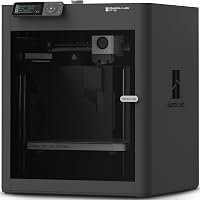
How to Choose a 3D Printer for Beginners
If you're deciding which 3D printer is best for beginners, the Bambu Lab A1 is our first choice for its automatic calibration. Choose the Anycubic Kobra X instead if built-in multicolor printing is your main goal.
On this page (10 sections)
- Which 3D printer is best for beginners?
- Which beginner printer fits each kind of buyer?
- What print size should you choose?
- How much print speed does a beginner need?
- Do beginners need an enclosure?
- Is multicolor printing worth it for a first printer?
- How should you set up your first printer?
- What supplies and care should you plan for?
- Which common mistakes should beginners avoid?
- Which 3D printer is best for beginners in your situation?
The Bambu Lab A1 is our first choice if you're deciding which 3D printer is best for beginners, because it handles several calibration steps automatically. Choose the Anycubic Kobra X instead if printing colorful models is your main reason for buying.
Your first projects should drive the choice. Desk organizers, replacement knobs and decorative models place different demands on print size, materials and color.
For a first machine, reducing setup work usually matters more than chasing maximum speed. You'll still need to learn slicing software, keep the build surface clean and recognize a good first layer.
Our complete 3D printer buying guide explains the main printer types and buying choices. Here, we'll turn those choices into a shortlist and a practical plan for your first prints.
Which 3D printer is best for beginners?
The Bambu Lab A1 is the default pick for less manual calibration. The Kobra X, Adventurer 5M and Ender 3 V3 SE make more sense when their particular features match what you want to make.
Start by naming 3 projects you would print during your first month. Find model files for them, note their dimensions and check any material recommendations before comparing machines.
A phone stand might fit on many printers, while a wide drawer organizer could rule out a smaller build area. A detailed miniature may lead you toward a different printing process altogether.
These four printers use filament, also called FDM printing. For tiny figures where fine surface detail matters most, read our resin vs FDM printer comparison before committing to either process.
Use these questions to narrow your choice:
- What are your first 3 planned projects?
- Must they fit in one piece, or can you join separate parts?
- Do they need several colors within the same object?
- Which materials do the designs call for?
- Where will the machine run, and who can reach it?
- Do you want printing to be the hobby, or mainly a way to make other things?
That last question matters. Someone who enjoys adjusting settings may accept more learning work than someone who simply wants to make useful household objects.
Which beginner printer fits each kind of buyer?
Choose the A1 for calibration help, Kobra X for color, Adventurer 5M for repeated design work, or Ender 3 V3 SE for learning with common filaments. Each choice has a clear reason to buy and a reason to skip it.
Bambu Lab A1: best beginner 3D printer for simpler setup
The A1 suits someone who wants to spend more time choosing models and less time making calibration adjustments. It automatically handles Z-offset, bed leveling, vibration resonance and nozzle pressure calibration.
Score: 8.8/10. Best for first-time home makers.
Its simplified touchscreen gives a new user a direct way to control the machine. Active flow rate compensation adjusts extrusion using sensor readings, while the quick-swap nozzle provides a simpler route to nozzle changes.
The A1 also offers cloud connectivity and LAN-only mode. That choice matters if you want local network operation rather than relying on cloud access for your workflow.
Choose it for useful parts, organizers and models when automatic setup is your main priority. It also leaves a route to multicolor printing through AMS lite, which requires the Combo package or a separate accessory.
Skip it if included multicolor printing is essential. Automatic calibration also doesn't remove the need to prepare models correctly or care for filament and the build surface.
Anycubic Kobra X: built-in color for decorative projects
The Kobra X suits beginners who already want multicolor signs, figures or decorations. Its built-in 4-color printing makes color a reason to choose the machine from the start.
Score: 8/10. Best for colorful display models.
It includes LeviQ 3.0 automatic bed leveling with 49-point calibration. Dual-band Wi-Fi and LAN connectivity support remote control through the Anycubic App and Slicer.
The printer also includes spaghetti detection and foreign object detection. Treat those as extra monitoring tools while still checking the first layer and keeping the work area clear.
Buy filament before setup because none is included. You can learn the basic workflow with one color, then introduce color changes after you can complete a simple print reliably.
Skip it if your plans center on single-color brackets, boxes and replacement parts. Those jobs don't need color switching, and learning to prepare multicolor files adds work that may not help your projects.
Flashforge Adventurer 5M: repeated parts and design revisions
The Adventurer 5M suits beginners who expect to make several versions of small parts. Its CoreXY motion system, automatic bed leveling and quick nozzle changes make it worth considering for that workflow.
Score: 7.9/10. Best for frequent design revisions.
It has a 280°C direct-drive extruder and comes with a standard 0.4 mm nozzle. Optional nozzle sizes range from 0.25 to 0.8 mm, giving you choices for finer features or thicker extrusion lines.
A smaller nozzle can help with narrow details, while a larger one can suit broad, simple parts. Start with the standard nozzle and learn its results before adding another variable.
The dual-sided PEI platform provides a removable print surface. Let it cool and follow the removal instructions rather than forcing a warm part off the plate.
Skip it if your planned one-piece objects exceed its build area. Also choose based on your actual projects rather than assuming its maximum movement speed will apply throughout every print.
Creality Ender 3 V3 SE: learning with common materials
The Ender 3 V3 SE suits beginners who want automatic first-layer adjustments while learning filament printing. CR Touch bed leveling and automatic Z-offset calibration reduce two common setup tasks.
Score: 7.7/10. Best for learning functional printing.
Its Sprite direct-drive extruder supports PLA, PETG and TPU. That gives you a path from basic models to tougher or flexible parts as your material needs develop.
Start with one material rather than trying all three during the first week. Flexible filament needs different handling and settings from a typical rigid starter filament.
Dual synchronized Z-axis lead screws and Y-axis linear shafts support the motion system. Its flexible PC spring steel build plate helps with removing completed models.
Skip it if multicolor printing is your main goal, or if you want the A1's broader set of automatic calibration features. For a large one-piece project, confirm the Ender's build volume before choosing it.
What print size should you choose?
Choose a build area that fits your largest planned one-piece object with room for any supports or adhesion aids. The machine's outer dimensions need a separate check.
| Printer | Build volume or print size |
|---|---|
| Bambu Lab A1 | 256 × 256 × 256 mm |
| Anycubic Kobra X | 260 × 260 × 260 mm |
| Flashforge Adventurer 5M | 220 × 220 × 220 mm |
A model that barely matches the maximum width may still be awkward to print. Rotating it, adding a brim or placing supports can change the space it needs.
Check the model in a slicer, which is the software that prepares printer instructions. Look at the proposed orientation rather than relying only on dimensions from a download page.
Splitting a large object can make a smaller printer practical. The trade-off is joining the parts afterward, with seams that may need sanding or other finishing.
Measure your planned location too. Leave clearance for moving parts, spool access, cables and removing the plate, following the printer's placement instructions.
How much print speed does a beginner need?
A beginner needs repeatable results before maximum speed. Speed becomes more valuable when you print often, but it shouldn't outrank build size or setup features.
Flashforge specifies up to 600 mm/s travel speed and 20,000 mm/s² acceleration for the Adventurer 5M. Creality specifies up to 250 mm/s printing speed and 2,500 mm/s² acceleration for the Ender 3 V3 SE.
Travel speed describes movement between printed areas, while printing speed concerns movement during extrusion. Those figures aren't a direct comparison.
A small, detailed model may contain many short moves that never reach a machine's maximum speed. Layer height, supports, wall thickness and cooling requirements also affect completion time.
Use the slicer's time estimate for the model you actually want to make. Begin with a suitable default profile, then change speed only after the printer produces clean layers and good adhesion.
For repeated design work, reducing unnecessary supports or printing only the section you need to check can save time too. A small fit sample is often more useful than another full-size revision.
Do beginners need an enclosure?
An enclosure should match your material and workspace needs, rather than your experience level. It can help control the printing environment, but it doesn't replace ventilation or careful placement.
PLA is a common starting material because it generally needs less control of surrounding temperature than materials such as ASA. Still follow the filament and printer instructions for ventilation and operation.
Don't assume a high nozzle temperature means a machine is ready for every material. Build-surface requirements, surrounding temperature and suitable profiles matter as well.
Keep hot and moving parts away from children and pets. Choose a stable location with access for maintenance and enough clearance for the full movement of the machine.
Our guides to whether you need a 3D printer enclosure and enclosed vs open-frame printers explain the trade-offs. Use them before planning an enclosure around a particular machine.
Is multicolor printing worth it for a first printer?
Multicolor is worth choosing when the colors are part of the finished design. For most functional parts, one color keeps preparation simpler and reduces material changes.
Color switching can add printing time and produce purge waste. The amount depends on the model and how often the printer changes filament, rather than just the number of colors.
A sign with color changes at a few layer heights is a different job from a figure that switches colors repeatedly within each layer. Preview the toolpaths and material estimate before starting a long print.
You can also make separate colored pieces and assemble them, or paint a finished model. Those approaches may suit occasional decorative projects without making multicolor equipment a buying priority.
Our guide to what AMS is on a 3D printer explains the Bambu system. For a color-focused shortlist, see our best multicolor 3D printers.
How should you set up your first printer?
Set up the machine exactly as its instructions describe, then use a small print to learn the workflow. Avoid making several settings changes before you've seen a basic result.
- Prepare the space. Use a stable surface, arrange ventilation and check clearance around moving parts.
- Complete assembly. Remove shipping restraints and follow the setup sequence, including any required checks.
- Install the correct slicer profile. Match the exact printer, nozzle and filament type.
- Load filament as directed. Check that the spool can turn without the filament catching.
- Run the calibration routine. Keep the build surface clear and avoid touching hot components.
- Print a small, simple object. Watch the first layer before moving on to a longer job.
The slicer turns a model into movement and extrusion instructions. Learn how to select layer height, orient the object and preview supports before exploring advanced settings.
A good first layer should form connected lines that stay attached to the surface. Loose strands, lifted edges or gaps are reasons to stop and check the setup.
Automatic leveling helps account for surface differences, but it can't remove dirt or fix a poorly prepared model. Our guide to leveling a 3D printer explains what the process does.
What supplies and care should you plan for?
Plan for filament, dry storage and routine cleaning alongside the machine. Keep the first setup simple, then add supplies when a project gives you a reason.
Start with a suitable PLA filament and a matching profile. Our beginner filament guide explains when PETG and other materials become useful.
Store opened filament in a sealed container with desiccant. Moisture can affect extrusion, but storage alone won't dry a spool that has already absorbed water.
Clean the build surface using the method approved for its coating. Avoid touching the print area with your fingers, since skin oils can interfere with adhesion.
Let the plate and model cool before removal. Don't scrape aggressively or apply a cleaning chemical simply because it works on a different type of plate.
Follow the maintenance schedule for the motion system and nozzle. Shut down and cool the machine before work that requires it, and use only the lubrication points and products its instructions specify.
Leave time to learn file preparation too. Our explanation of how a 3D printer works connects the model, slicer and machine stages.
Which common mistakes should beginners avoid?
Avoid changing several variables at once. When a print fails, a clear sequence of checks is more useful than trying random settings.
- Starting with a long, complex model: choose a short print first so you can spot setup problems without losing much material.
- Ignoring orientation: the direction of the layers affects support needs, surface finish and how a part handles force.
- Using maximum speed immediately: begin with the filament profile's normal settings and increase speed only when results support it.
- Adding too much infill: wall thickness and print orientation also affect strength, so denser infill isn't always the best fix.
- Treating auto leveling as complete care: a clean plate and suitable filament settings still matter.
- Scaling a fitted part casually: changing a model's size also changes holes, clearances and mating features.
For a failed first layer, check surface cleanliness, the selected profile and the calibration routine first. For a fit problem, print a small section of the joint before committing to the full object again.
Keep a short note of the material, profile and change you made. That makes it easier to repeat a useful result and avoid going in circles.
Which 3D printer is best for beginners in your situation?
The best beginner 3D printer is the one that removes work you don't want while fitting the projects you do. Make the final choice around your main use rather than the longest feature list.
- Pick the Bambu Lab A1 if automatic calibration is your priority and multicolor can be an optional addition.
- Pick the Anycubic Kobra X if colorful models are the main reason you're buying.
- Pick the Flashforge Adventurer 5M if its build area fits your parts and you expect frequent design revisions.
- Pick the Creality Ender 3 V3 SE if you want automatic leveling while learning to make useful parts with common filaments.
Before ordering, check one real model in a slicer and measure the planned workspace. Then use our best 3D printers for beginners comparison to review your shortlist against those needs.