6 Best Enclosed 3D Printers (October 2026)
The best enclosed 3D printers include the Bambu Lab P1S Combo for multicolor hobbyists, the Bambu Lab P2S Combo for moisture-sensitive filament, and the Bambu Lab P1S for single-color makers.
On this page (8 sections)
- How we chose the best enclosed 3D printers
- The best enclosed 3D printers for different needs
- How do you choose an enclosed printer for your projects?
- What does an enclosure help with?
- How should you set up your first enclosed print?
- What care keeps an enclosed printer useful?
- Which buying and printing mistakes should you avoid?
- Which best enclosed 3D printer should you buy?
The Bambu Lab P1S Combo is the best enclosed 3D printer for buyers who want multicolor printing included from the start. For single-color organizers, brackets and household parts, the standalone P1S is a more direct fit.
An enclosure helps manage drafts and heat around a print, but the right choice still depends on filament, part size and workspace. A closed body alone doesn't provide active chamber heating, abrasive-material support or suitable ventilation.
If you're still deciding whether an enclosed model suits your space, read whether you need a 3D printer enclosure and how enclosed and open-frame printers compare. Our beginner 3D printer guide covers the broader setup and buying choices.
Our picks at a glance
-
1

-
2
-
3
How we chose the best enclosed 3D printers
We compared material support, calibration features and filament handling to match each printer to a clear buying need. The P1S Combo leads for multicolor hobby use, while the specialist picks address drying, reinforced materials and separate toolheads.
A higher maximum speed didn't automatically earn a higher position. Useful output depends on the model, filament, cooling and settings, so advertised speed is only one part of the decision.
Speed, setup-time and noise promises are attributed to their brands. We also distinguish an enclosure that retains warmth from a chamber with active heating, since those features serve different material needs.
| Product | Best for | Enclosure | Material workflow | Calibration | Our score |
|---|---|---|---|---|---|
| Bambu Lab P1S Combo | multicolor hobbyists | Fully enclosed | Included AMS | Automatic bed leveling | 8.7 |
| Bambu Lab P2S Combo | moisture-sensitive filament | Adaptive airflow with heat retention | Included AMS 2 Pro with drying | Automatic calibration | 8.6 |
| Bambu Lab P1S | single-color makers | Fully enclosed | Separate AMS needed for multicolor | Automatic bed leveling | 8.4 |
| Elegoo Centauri Carbon | reinforced-filament projects | Enclosed chamber with enhanced cooling | Supports advanced filaments including carbon fiber reinforced options | Auto bed leveling and vibration compensation | 7.4 |
| Flashforge Adventurer 5M Pro | shared workspaces | Fully enclosed with dual filtration | Quick-swap nozzle system | One-click auto leveling | 7.2 |
| Flashforge Creator 5 Pro | multi-material prototypes | Fully enclosed with active chamber heating | Four independent toolheads | Flow Dynamics Calibration | 6.8 |
The best enclosed 3D printers for different needs
Choose the P1S Combo for multicolor hobby work and the standalone P1S for mostly single-color parts. Move to the other picks when their specific material or workflow features solve a problem you expect to face.
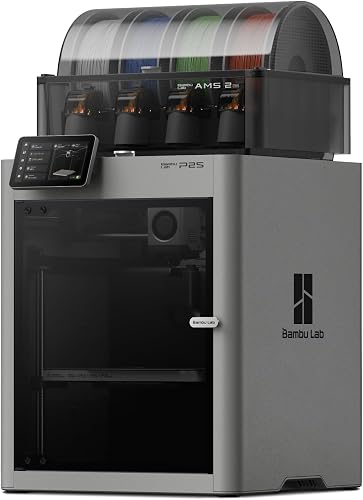
Bambu Lab P1S Combo: best enclosed 3D printer for multicolor hobbyists
Bambu Lab P1S Combo
- Enclosed body
- AMS included
- Automatic bed leveling
- Up to 500 mm/s
Choose this combo when colored details are part of your project plans. The included AMS adds multicolor capability to an enclosed printer with automatic bed leveling.
Pros
- AMS included
- Automatic bed leveling
- Supports PLA, PETG, ABS and ASA
Cons
- Carbon and glass fiber reinforced polymers are not recommended
- Color changes add workflow steps
The P1S Combo suits people making colored signs, decorative models and parts with readable labels. Its included AMS lets you plan multicolor projects without arranging that addition separately.
Bambu Lab advertises up to 16 colors with AMS connections, but don't assume one included unit provides the full advertised color count. Confirm the equipment needed for the number of colors you intend to use.
Automatic bed leveling helps with setup, and Bambu Lab claims a 15-minute setup process. That doesn't include learning the slicer, preparing a model or choosing suitable material settings.
The main buying question is how often color changes will improve your work. A colored logo may justify them; a utility bracket that sits under a desk probably won't.
Skip this combo if nearly every project will use one color or you plan to print carbon or glass fiber reinforced polymers. Those reinforced materials aren't recommended for the P1S, and an AMS doesn't change that restriction.
Bambu Lab P2S Combo: drying and airflow control
Bambu Lab P2S Combo
- AMS 2 Pro included
- Filament drying up to 65 °C
- Adaptive airflow
- AI failure detection
The P2S Combo suits buyers who want filament drying and multicolor handling in the same workflow. Adaptive airflow manages cooling and heat retention.
Pros
- Built-in filament drying
- Quick-swap nozzles
- Active Flowrate Compensation
Cons
- Drying temperature must suit the filament and spool
- Heaviest pick at 47.5 lb
The P2S Combo fits buyers who want filament drying built into multicolor handling. Its AMS 2 Pro dries at up to 65 °C, which can simplify preparation for moisture-sensitive materials.
Use a drying temperature approved for both the filament and its spool. A dry filament path helps, but it cannot correct the wrong nozzle temperature, poor bed adhesion or an unsuitable model.
Bambu Lab's adaptive airflow system balances cooling and heat retention, with the brand describing a 50 °C chamber for engineering materials. Automatic calibration, AI failure detection and quick-swap nozzles add support for a varied workload.
The servo extruder and Active Flowrate Compensation address extrusion control. They don't remove the need for a suitable filament profile or sensible print orientation.
Skip the P2S Combo if you mainly want occasional single-color PLA prints and won't use its drying or multicolor features. Choose it for a recurring workflow need, rather than its advertised maximum speed of 600 mm/s.
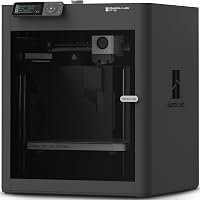
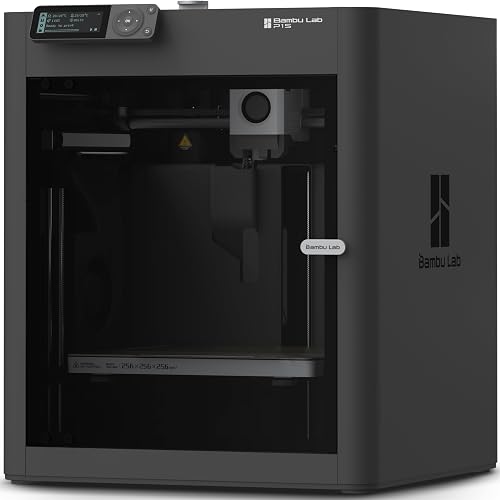
Bambu Lab P1S: single-color utility printing
Bambu Lab P1S
- Enclosed body
- Automatic bed leveling
- Up to 500 mm/s
- Separate AMS needed for multicolor
The standalone P1S fits practical projects that use one filament at a time. A separate AMS provides a path to multicolor printing later.
Pros
- Single-color workflow without an included AMS
- Automatic bed leveling
- Supports several common filament types
Cons
- AMS must be added for multicolor work
- Carbon and glass fiber reinforced polymers are not recommended
The standalone P1S is the sensible pick for one-filament household and hobby projects. Storage dividers, cable guides and replacement knobs rarely need automatic color changes.
Its enclosed body and automatic bed leveling provide the core setup without an included AMS. You can add a separate AMS if future projects justify multicolor handling.
Supported materials include PLA, PETG, TPU, PVA, PET, ABS and ASA, while Bambu Lab describes PA and PC as capable options. Printer support doesn't mean every material can pass through an automatic feeder or share the same settings.
For functional parts, learn orientation, wall thickness and material choice before adding colors. Those decisions can matter more to a bracket's usefulness than its appearance.
Skip the standalone version if multicolor projects are already central to your plans, since you'll need additional equipment. Compare the P1S and A1 if you're also considering an open-frame Bambu printer.
Elegoo Centauri Carbon: reinforced-filament projects
Elegoo Centauri Carbon

- 256 x 256 x 256 mm build volume
- 320 °C nozzle
- Built-in chamber camera
- Arrives assembled and pre-calibrated
Choose the Centauri Carbon for parts that fit its stated build area and need supported reinforced filament. Its chamber camera and dual LED lighting help you watch print progress.
Pros
- High-temperature nozzle
- Die-cast aluminum frame
- Camera and dual LED lighting
Cons
- Weighs 38.5 lb
- Reinforced filament still requires suitable material settings
The Centauri Carbon suits makers exploring supported reinforced filaments for functional parts. Its 320 °C nozzle and enclosed chamber address material needs that a basic enclosure alone cannot meet.
Its 256 x 256 x 256 mm build volume gives you a clear size limit to compare with your designs. Leave room in that area for any brim, supports or orientation changes your model requires.
Elegoo supplies it assembled and pre-calibrated, with auto bed leveling, vibration compensation and pressure advance. A chamber camera and dual LED lighting help you inspect progress without repeatedly opening the enclosure.
Reinforcement doesn't make every part stronger in every direction. Layer orientation and the base polymer still affect how a printed component handles loads and heat.
Skip it if advanced filament has no clear purpose in your projects, and don't assume every reinforced blend is suitable. Read our guide to choosing a printer for home use before deciding where a machine of this type will live.
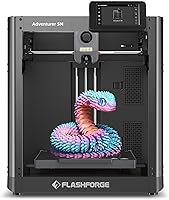
Flashforge Adventurer 5M Pro: shared workspaces
Flashforge Adventurer 5M Pro

- Dual filtration
- Flashforge claims operation below 50 dB
- Tool-free quick-swap nozzle
- Built-in camera
The Adventurer 5M Pro suits a workspace where filtration, noise and easy nozzle changes matter. Flashforge claims operation below 50 dB.
Pros
- Dual filtration system
- One-click auto leveling
- Filament detection and power loss recovery
Cons
- Lower nozzle temperature ceiling than the Centauri Carbon and Creator 5 Pro
- Filters require care and do not replace ventilation
The Adventurer 5M Pro suits buyers who put filtration, nozzle access and workspace noise high on their checklist. Flashforge claims operation below 50 dB, though the room, surface and print job will affect what you hear.
Its dual filtration system is useful to consider when planning placement. Keep ventilation in that plan, and allow access for filter care rather than pushing the enclosure tightly into a cabinet.
The quick-release nozzle system supports 0.25, 0.4, 0.6 and 0.8 mm sizes. Smaller nozzles suit fine details; larger ones can make thicker lines for suitable models, but require matching slicer settings.
A 280 °C nozzle ceiling and 110 °C heated bed support materials including PLA, PETG, ABS, ASA and PETG-CF. The camera, filament detection and power loss recovery add practical monitoring features.
Skip it if your chosen filament requires a hotter nozzle or active chamber heating. Don't choose it solely on the noise claim if the printer must share a room with calls or sleep.
Flashforge Creator 5 Pro: multi-material prototypes
Flashforge Creator 5 Pro

- Four independent toolheads
- 65 °C active chamber heating
- 320 °C hardened nozzle
- Flow Dynamics Calibration
The Creator 5 Pro fits projects that need separate materials within one print. Four toolheads and active chamber heating give it a more specialized role than a basic single-material printer.
Pros
- Four preloaded, preheated toolheads
- Actively heated chamber
- Supports several carbon fiber reinforced filaments
Cons
- More setup decisions for mixed-material jobs
- Multiple toolheads add maintenance tasks
The Creator 5 Pro fits projects that genuinely need different materials within one print. Four independent toolheads keep their own filaments ready and change materials by swapping heads.
That approach differs from feeding several filaments through one nozzle. It changes the material-change process, but the sliced job still needs careful review for tool assignments, supports and clearance.
Its 65 °C actively heated chamber and 320 °C hardened nozzle suit a more demanding material workflow. Supported options include TPU, PVA, ABS, ASA and several carbon fiber reinforced filaments.
Those options aren't a promise that any combination will work together. Materials may need different temperatures, may bond poorly or may serve better as removable supports than permanent layers.
Skip this specialist machine if your goal is simply a model in several colors. Choose it when a specific prototype needs separate materials, and allow time for toolhead care and material-profile setup.
How do you choose an enclosed printer for your projects?
Start with the parts you want to make and the filament they require. Then check usable build space, material support and the room where the printer will operate.
Choose the material before the machine
PLA is a useful starting point for many decorative objects and simple indoor parts. PETG can suit some practical parts, while ABS, ASA and engineering polymers bring different heat, cooling and handling needs.
Don't buy advanced filament just because the printer accepts it. Choose properties that serve the part, then check nozzle, bed, chamber and drying requirements for that exact material.
Reinforced filament also needs suitable wear-resistant hardware. A high nozzle temperature by itself doesn't establish compatibility with abrasive materials.
Our beginner filament guide explains how common materials differ before you commit to a printer around one of them.
Compare usable build space, not cabinet size
Body dimensions tell you whether the machine fits on a table. Build volume tells you whether your object fits inside the printing area.
Measure your largest likely part in its intended print orientation. Supports, brims and turning the object to improve strength can change the space it needs.
A design that barely fits may be less convenient than one split into smaller sections. Check whether the model can be joined afterward before making size your deciding factor.
Decide whether you need colors or different materials
Multicolor printing changes appearance, while multi-material printing can change what a part does. A colored nameplate and a rigid part with a flexible section pose different requirements.
Several colors of the same compatible filament are generally a simpler starting point than unrelated materials. Shared temperature needs, adhesion and feeder compatibility become more important as materials differ.
Read what AMS means on a 3D printer if you're deciding whether automatic filament handling will earn its place in your workflow.
Budget your space and attention
Leave room for the door, lid, spool path and routine maintenance. An enclosure that fits under a shelf may still be awkward if you can't load filament or reach a clogged nozzle.
Use a stable surface that can carry the printer and its accessories. Avoid light furniture that rocks as the machine changes direction.
Also consider how often you'll change materials and nozzles. More options help only if you're willing to manage the extra settings and care.
What does an enclosure help with?
An enclosure helps reduce drafts and retain warmth around suitable prints. That matters most when uneven cooling causes corners to lift or layers to separate.
A passive enclosure traps some heat from the printing process. An actively heated chamber adds controlled heat, which is a separate feature rather than an automatic benefit of every closed printer.
Some low-temperature filaments need more cooling instead of more warmth. Follow the printer's material-specific airflow and door instructions rather than keeping everything closed for every job.
Filtration and ventilation serve different roles. Keep the printer and filament brands' placement guidance in mind even when a machine has built-in filters.
The enclosure guide explains when a separate enclosure can help, while the enclosed versus open-frame comparison walks through the tradeoffs. If you're still choosing your first machine, use the beginner buying guide to compare printer types and setup needs.
How should you set up your first enclosed print?
Begin with one familiar filament and a small, simple model. A short first job makes it easier to spot setup problems before committing to a large part.
Prepare the location and machine
Place the printer where you can inspect it, open its panels and follow ventilation instructions. Keep loose items away from vents and moving parts.
Remove shipping restraints and packing material as directed in the setup guide. Check the build plate position and make sure the filament path has no tight bends or snags.
Run the required calibration after placement. Automatic bed leveling helps map the surface, but it doesn't clean the plate or select the correct filament profile.
Match the slicer to the hardware
Select the exact printer model, installed nozzle size and filament type. These settings affect line width, temperatures, cooling and movement.
Inspect the sliced preview for unsupported sections, unexpected material changes and areas that look too thin. Confirm that the part is oriented for its job, not merely for the shortest print time.
For a multicolor model, check which spool feeds each section. Review the estimated waste and duration before sending a long job.
Watch the first layer
Look for lines that join into an even surface without dragging loose strands around the plate. Stop early if the material isn't sticking or the nozzle is gathering a clump.
Check plate cleanliness, material settings and calibration before changing several values at once. A camera helps you see progress, but it doesn't clear a failed print or make early checks unnecessary.
Let the plate and part cool as directed before removal. Pulling hard on a hot, firmly attached print can damage the part or build surface.
What care keeps an enclosed printer useful?
Keep the plate clean, filament dry and motion system maintained according to the printer's instructions. Regular care is more useful than adding features to compensate for a neglected machine.
Clean the plate without damaging it
Avoid touching the print area with your fingers, since oils can interfere with adhesion. Use the cleaning method approved for the particular plate surface.
Don't scrape with an unsuitable tool or apply an unapproved cleaner. Different coatings need different care, even when the plates look similar.
Store filament for the next job
Keep unused filament in suitable dry storage rather than leaving every spool exposed. Moisture can contribute to stringing, rough surfaces and inconsistent extrusion.
Drying and storage have different purposes: drying removes moisture, while sealed storage helps limit its return. Use the filament maker's drying guidance, especially for heat-sensitive spools.
Inspect wear points and filters
Clear loose scraps from the chamber and check for filament buildup around the nozzle. Let hot components cool and follow the maintenance procedure before reaching inside.
Inspect feeder paths and nozzle condition, especially after abrasive materials. On multi-toolhead machines, include each head in that routine rather than checking only the one used most often.
Follow the replacement schedule for filters and any other service parts. Maintain belts, rods or rails only with the methods and lubricants approved for that printer.
Which buying and printing mistakes should you avoid?
Avoid choosing by speed alone or treating the enclosure as a cure for every print problem. A well-matched material and profile matter more than an impressive headline figure.
- Buying multicolor for occasional accents: painting a detail or printing separate pieces may suit rare color needs without automatic changes.
- Assuming all material support is equal: check the exact filament, feeder route and required hardware, particularly for flexible or abrasive blends.
- Running every job at maximum speed: detailed surfaces, small features and limited material flow may require slower settings.
- Ignoring part orientation: a bracket can fit the build plate yet be weak across the layer direction where force is applied.
- Using heat to solve every adhesion problem: first check cleanliness, calibration and the correct plate and filament profile.
- Treating monitoring as repair: cameras and failure alerts help identify trouble; they don't remove debris or restore a detached part.
- Buying for hypothetical projects: choose for the work you expect to do regularly, with one clear reason for each specialist feature.
Which best enclosed 3D printer should you buy?
The best enclosed 3D printer for you is the one whose material workflow matches your next projects. Use this decision list to narrow the choice before comparing secondary features.
- Choose the P1S Combo when colored details are a regular part of your hobby work and you want an included AMS.
- Choose the P2S Combo when integrated drying and airflow control address materials you'll use often.
- Choose the standalone P1S when most jobs are single-color utility parts and an AMS can wait.
- Choose the Centauri Carbon when your designs fit its build area and supported reinforced filament serves a clear purpose.
- Choose the Adventurer 5M Pro when filtration, nozzle changes and workspace noise are central buying concerns.
- Choose the Creator 5 Pro when a specific multi-material design calls for separate toolheads and active chamber heating.
Before ordering, identify one representative model, its filament and its required print orientation. That small exercise can reveal a size or compatibility mismatch before the printer reaches your desk.
For a broader shortlist beyond enclosed models, see the best 3D printers for beginners.
Our top 3 picks at a glance
-
1
-
2
-
3
Frequently asked questions
What is the best enclosed 3D printer for beginners?
The Bambu Lab P1S Combo is our top choice for beginners who already want multicolor printing, thanks to its included AMS and automatic bed leveling. Choose the standalone P1S if your first projects use one color; start with a simple PLA model before adding material changes or more demanding filament.
Does an enclosure make every filament easier to print?
No, an enclosure helps materials that need protection from drafts and steadier warmth, but some filaments need strong cooling. Use the recommended material profile and enclosure settings for your printer; a closed body also does not make a nozzle suitable for abrasive filament or make different materials bond together.
Is an enclosed 3D printer safer to use indoors?
An enclosure limits casual access to moving and hot parts, but it does not establish safe indoor air conditions; filters also do not remove every emission. Choose a ventilated location, follow printer and filament instructions, and keep children and pets away from the machine while it operates and cools.
Should I choose an enclosed printer with multicolor printing?
Choose multicolor printing when your planned models need colored labels, decorative details or several compatible materials in one job; for brackets, organizers and most single-material parts, it adds little practical value. Review the sliced job's time and waste estimates before deciding how often you would use the extra capability.