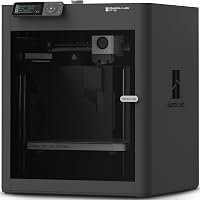
Bambu Lab A1 Review: Beginner-Friendly Printer (October 2026)
The Bambu Lab A1 suits beginners who want fewer manual setup steps and room for larger projects. Choose the A1 Combo if you also want multicolor printing through AMS lite.
On this page (9 sections)
- Bambu Lab A1 review: who should buy it?
- How much space do the printer and your models need?
- Should you buy the standard A1 or the A1 Combo?
- How should you set up the A1 for a first print?
- What care does the A1 still need?
- Which mistakes cause avoidable failed prints?
- How does the A1 compare with these alternatives?
- Will the A1 suit a shared room?
- Should you choose the Bambu Lab A1?
The Bambu Lab A1 is a strong choice for beginners who want fewer manual setup steps and room for household projects. Choose it for organizers, hobby models and useful parts when you'd rather spend time preparing designs than adjusting calibration settings.
Its main buying decision is simple: start with the standard printer for single-color work, or choose the Combo when multicolor projects are already on your list. The alternatives below suit different priorities, including built-in color and smaller prototypes.
Bambu Lab A1 review: who should buy it?
Buy the A1 if automatic calibration matters more than having multicolor equipment included. It suits a first home workshop where you'll print a mix of practical objects and decorative models.
Bambu Lab A1

- 256 x 256 x 256 mm build volume
- Full-auto calibration
- Optional AMS lite multicolor printing
- LAN-only mode available
Choose the A1 for a first home printer that handles several calibration tasks automatically. Start with single-color projects or choose the Combo for an included AMS lite system.
Pros
- Automatic calibration for each print job
- Room for larger household projects
- Touchscreen interface and 1-clip quick-swap nozzle
- Local-network connection option
Cons
- Standard A1 needs AMS lite for multicolor printing
- Requires workspace beyond the model's build area
The A1 automatically calibrates Z-offset, bed leveling, vibration resonance and nozzle pressure for each print job. Those adjustments address several tasks that can otherwise slow down a beginner's first projects.
Active flow rate compensation uses sensor readings to adjust extrusion. Bambu Lab says this helps keep material flow accurate as the printer works.
These features make the A1 a sensible choice for someone who wants to learn model preparation without making manual machine adjustment the main hobby. You'll still need to understand supports, orientation and filament settings.
Who should skip the Bambu Lab A1?
Skip the standard A1 if multicolor printing must be included from the start and you don't want to select an additional system. The Combo is the A1 option to consider, while the Kobra X offers another route.
Also pause if you haven't found a suitable workspace. A printer needs a stable surface, access for maintenance and clearance for moving parts, cables and filament.
For supervised family projects, an adult should handle hot parts, maintenance and print removal. Automatic setup features don't remove the risks from a hot nozzle or moving machinery.
Our beginner 3D printer buying guide explains the skills you'll use beyond pressing the print button.
How much space do the printer and your models need?
The A1 provides a 256 x 256 x 256 mm build volume, but your desk must accommodate the whole machine and its operating clearance. Build volume describes the model space, not the required workspace.
| Detail | Bambu Lab A1 |
|---|---|
| Printer type | FDM |
| Printer dimensions | 21.76 x 20.83 x 12.87 in |
| Weight | 22 lb |
| Interface | Touchscreen |
| Nozzle maintenance | 1-clip quick swap |
| Connection options | Bambu Cloud Service or LAN-only mode |
Use the machine dimensions as a starting point when measuring a table. Check the setup instructions for operating clearance, and leave access to the controls, nozzle and filament path.
A sturdy table is more useful than a narrow shelf that barely holds the printer. Avoid a surface that rocks when you lean on it, and keep loose objects outside the machine's movement area.
Before buying, open a few intended models in a slicer, the software that prepares a design for printing. Look at their dimensions after rotation, plus the space required for supports or a brim.
Don't choose a printer around a vague plan to make “large things.” Measure the actual drawer insert, model base or replacement cover you want to produce.
Objects larger than the build area can sometimes be split and joined, but that adds seams and assembly work. Our guide to enclosed versus open-frame 3D printers covers other workspace and material considerations.
Should you buy the standard A1 or the A1 Combo?
Choose the standard A1 for mostly single-color parts and the Combo for frequent multicolor projects. AMS lite is required for the A1's multicolor printing and is included with the Combo or available separately.
Single-color printing is enough for many drawer dividers, tool holders, brackets and simple models. You can also print separate colored pieces and assemble them when the design allows it.
Multicolor is more useful for signs, contrasting labels and figures with details that are awkward to assemble separately. Decide based on a few designs you want to make, rather than the appeal of extra colors alone.
As a general rule, automatic color changes can increase print time and create purge waste. Check the slicer's estimates for the finished object and discarded material before starting a long color job.
AMS lite also supports RFID sync for Bambu filaments. Bambu Lab says this matches print settings automatically, which reduces manual profile entry for those filaments.
Start your first project in one color even if you buy the Combo. That makes it easier to learn the basic workflow before adding color assignments and filament changes.
Our explanation of what AMS does on a 3D printer helps you decide whether an automatic material system will earn its space. For other configurations, see the best multicolor 3D printers.
How should you set up the A1 for a first print?
Set up the A1 on a stable, clear surface, follow its assembly and startup instructions, and begin with a small model. Keep the first job simple enough that you can watch the early layers and understand the result.
- Check the movement area. Remove packing materials as directed, route cables correctly and keep the filament path clear.
- Choose your connection. Decide between cloud use and a local-network workflow, then follow the instructions for that mode.
- Load suitable filament. Use the correct material profile and make sure the spool can feed without a snag.
- Prepare a small model. Select the correct printer and nozzle profile in the slicer, then check size and orientation.
- Run the normal calibration sequence. Don't bypass startup steps just to save a little time.
- Watch the first layer. Stop the job if material collects around the nozzle or the model comes loose.
Choose a first model with a broad base and few overhangs. A simple tray or small organizer teaches more about basic printing than an intricate figure with many supports.
For general beginner filament projects, PLA is a common starting point because it is relatively straightforward to print. Always confirm material suitability and use the printer's recommended settings.
Our beginner filament guide explains how PLA, PETG and other materials differ. Learn one material before changing several settings and filament types at once.
What care does the A1 still need?
The A1 still needs a clean build surface, freely feeding filament and routine inspection. Calibration adjusts the machine; it doesn't remove grease, untangle a spool or repair a damaged nozzle.
Avoid touching the print area with your fingers, since skin oils can affect adhesion. Clean the surface with a method approved for that build plate, and let it dry before printing.
Store opened filament away from moisture, using sealed storage and desiccant where appropriate. Moisture can cause extrusion problems, so follow the filament maker's drying guidance if a spool needs attention.
Let the print and build surface cool before removal, following the printer's instructions. Pulling hard on a warm part can distort it or put unnecessary force on the machine.
The A1's 1-clip nozzle system makes replacement more convenient, but follow the required shutdown and cooling steps. A quick-release mechanism doesn't make a hot nozzle safe to touch.
Check maintenance guidance for cleaning, inspection and lubrication intervals. Keep a short note of filament changes, maintenance and settings that worked so you have a useful starting point when a problem appears.
Which mistakes cause avoidable failed prints?
The most avoidable mistakes are poor model preparation and changing too many settings at once. Start with a recommended profile, then change one thing only when you have a clear reason.
A model that looks good on screen may have overhangs that need support. Preview the sliced layers and check that each new section has something beneath it.
Orientation also affects strength because FDM parts are built in layers. For a useful part, consider the direction of force as well as the easiest position to print.
Don't choose the highest speed simply because it is available. Fine details, small features and demanding materials may need slower settings than a broad, simple shape.
Likewise, extra infill isn't always the best answer to a weak part. Wall thickness, orientation and the design itself can matter more, so change the feature tied to the failure.
If a print fails, check the first layer, filament feed and sliced preview before making broad adjustments. Repeating the same long job without identifying the cause usually wastes more material.
How does the A1 compare with these alternatives?
Choose an alternative when its main feature matches your projects better than the A1's calibration-focused approach. Maximum speed alone is a poor way to decide between them.
Anycubic Kobra X: for color-first projects
The Kobra X suits buyers planning colorful signs, display pieces and school projects from day one. It includes 4-color capability, automatic bed leveling and app monitoring.
Its build volume is 260 x 260 x 260 mm, only slightly larger than the A1's. That small difference matters mainly when a specific model sits near the size limit.
Filament isn't included, so plan your first materials along with the printer. Skip it if most of your work will be plain functional parts and color equipment won't serve a regular purpose.
Our Bambu Lab A1 versus Anycubic Kobra X comparison looks more closely at that choice.
Flashforge Adventurer 5M: for smaller prototypes
The Adventurer 5M suits small-part makers who expect to change nozzle sizes for different jobs. Flashforge advertises 3-second nozzle changes, with optional sizes from 0.25 to 0.8 mm.
In general, smaller nozzles suit fine features, while larger ones can make broader extrusion lines for larger parts. Changing sizes also requires the matching slicer settings.
Its 220 x 220 x 220 mm build volume is smaller than the A1's, and Flash Studio provides remote monitoring and alerts. Skip it if your intended models regularly need more space and you want to avoid splitting them.
Creality Ender 3 V3 SE: for learning filament basics
The Ender 3 V3 SE suits patient hobbyists who are comfortable with a few assembly steps. It pairs CR Touch automatic leveling and automatic Z-offset calibration with a Sprite direct-drive extruder.
It supports PLA, PETG and TPU, and its flexible PC spring steel build plate helps with print removal. Its stated maximum speed is 250 mm/s.
Consider it for everyday filament projects when you value those basics more than the A1's broader automatic calibration. Skip it if your main goal is to minimize setup decisions and get straight to model preparation.
Will the A1 suit a shared room?
The A1 can suit a shared workspace if you allow for operating noise and keep it away from sleeping areas. Bambu Lab includes active motor noise canceling, but fans and machine movement still deserve consideration.
Motor noise reduction isn't a promise of silence. A stable table can help limit vibration transfer, while a separate work area gives you more freedom to run longer jobs.
Print monitoring is useful for checking progress, but arrange the workspace so you can inspect the machine safely. Keep children, pets and loose items away from hot and moving parts.
Also choose materials and ventilation appropriate to the room. Don't treat a convenient desk location as the only requirement for a suitable printing space.
Should you choose the Bambu Lab A1?
Choose the Bambu Lab A1 for a first home printer when you want automatic calibration and enough room for varied projects. Buy the standard setup for practical single-color work, or choose the Combo when regular multicolor printing is part of the plan.
Choose the Kobra X for built-in color, the Adventurer 5M for smaller projects and nozzle flexibility, or the Ender 3 V3 SE for basic filament work with some assembly.
Before ordering, check 3 real models in a slicer and measure your workspace. Those two steps will tell you more about fit than chasing the largest speed number.
For the next step, our guide to how a 3D printer works explains the path from a model file to a finished object. If you're still choosing an ecosystem, compare Bambu Lab and other 3D printer brands.
Frequently asked questions
Is the Bambu Lab A1 good for beginners?
Yes, the Bambu Lab A1 suits beginners who want fewer manual calibration tasks. It handles several adjustments before each print, but you still need to prepare files, choose suitable settings and keep the build surface clean.
Start with a small, simple model before moving to long or multicolor projects.
Can the Bambu Lab A1 print in multiple colors?
Yes, the A1 can print in multiple colors with AMS lite, which comes with the A1 Combo or can be bought separately. Choose the Combo when color is central to your plans.
For organizers, brackets and other single-color parts, the standard printer is a sensible starting point.
How large can the Bambu Lab A1 print?
The A1 has a 256 x 256 x 256 mm build volume. Check your model in the slicer because orientation, supports and any brim also need space.
A tall or wide design may fit after rotation, while larger objects may need to be divided into parts and joined afterward.
Does the Bambu Lab A1 need an internet connection?
The A1 supports LAN-only mode, so Bambu Cloud Service isn't your only connection option. A local network is still needed for that mode, and its workflow may differ from cloud use.
Follow Bambu Lab's connection instructions and choose your preferred approach before preparing your first print.