7 Best Multicolor 3D Printers (October 2026)
The best multicolor 3D printers include the Bambu Lab P1S Combo for enclosed everyday printing, the Bambu Lab P2S Combo for moisture-sensitive filament users, and the Snapmaker U1 for frequent material changes.
On this page (8 sections)
- The best multicolor 3D printers for different needs
- How do you choose the best multicolor 3D printer?
- How much extra time and filament should you allow?
- How should you set up your first multicolor print?
- What care does a multicolor printer need?
- Which multicolor printing mistakes should you avoid?
- Is a multicolor 3D printer worth buying?
- Which best multicolor 3D printer fits your next project?
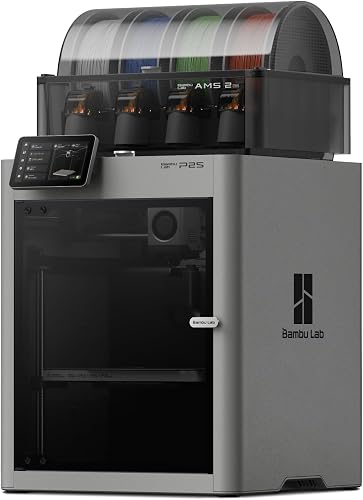
The Bambu Lab P1S Combo is the best multicolor 3D printer for most buyers who want an enclosed machine with an included AMS. Choose Snapmaker U1 for frequent material changes, or Bambu Lab P2S Combo if integrated filament drying is a priority.
Start with what you want to make: readable labels, colorful figures, matching sets of parts or models with removable supports. Those projects place different demands on a color system, even when they use the same number of spools.
If you're choosing your first machine, read our 3D printer buying guide for beginners and beginner 3D printer picks. For the basics of automatic filament feeding, see what AMS means on a 3D printer.
Our picks at a glance
-
1

-
2
-
3

The best multicolor 3D printers for different needs
The P1S Combo is the most balanced starting point here, while the other picks solve narrower needs such as drying filament, changing materials or expanding a palette. We compared color systems, included hardware, setup aids and material support.
Maximum travel speed carries less weight than the whole job. Color changes, supports, cooling and model geometry can account for much of the time between pressing print and removing a finished part.
| Product | Best for | Color system | Build | Setup | Our score |
|---|---|---|---|---|---|
| Bambu Lab P1S Combo | enclosed everyday printing | AMS included; up to 16 colors with required hardware | Fully enclosed body | Bambu Lab says 15 minutes | 8.7 |
| Bambu Lab P2S Combo | moisture-sensitive filament users | AMS 2 Pro; Combo required for multicolor | 8.6 | ||
| Snapmaker U1 | frequent material changes | Four independent toolheads | 8.3 | ||
| Anycubic Kobra X | first color projects | Four colors built in | 8.0 | ||
| Elegoo Centauri 2 Combo | guided setup | Four-color CANVAS system | 7.8 | ||
| Creality K2 Combo | expanding color collections | One CFS included; up to 16 colors with four units | 7.5 | ||
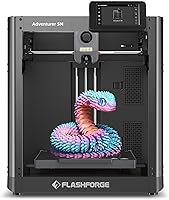
| Flashforge AD5X | smaller decorative projects | Up to four colors | 7.3 |
Bambu Lab P1S Combo
- AMS included
- Expandable multicolor printing
- Enclosed body
- Automatic bed leveling
An enclosed printer with an included AMS suits buyers who want color models now and a wider choice of filament later. Check feeder compatibility before planning mixed-material prints.
Pros
- Included AMS for multicolor printing
- Enclosed body
- Automatic bed leveling
Cons
- Maximum palette requires confirming the full hardware configuration
- Carbon or glass fiber reinforced polymers are not recommended
The P1S Combo suits buyers who want an enclosed starting point for color models and future filament projects. Automatic bed leveling removes one manual setup task, and Bambu Lab says initial setup takes about 15 minutes.
Its included AMS handles multicolor feeding, with support for up to 16 colors using the required configuration. Plan around the hardware included in your chosen package rather than treating the maximum palette as the starting palette.
The enclosed body is useful when considering filaments that benefit from a steadier surrounding temperature. Bambu Lab identifies ABS and ASA among its supported materials, but the printer's material range doesn't mean every filament can pass through AMS.
Choose it for a mix of decorative prints and practical parts, especially when an enclosure already fits your plans. Skip it if separate toolheads are central to your projects, or if carbon or glass fiber reinforced polymers are a priority, since Bambu Lab doesn't recommend those materials here.
Bambu Lab P2S Combo
- AMS 2 Pro included
- Integrated filament drying
- AI failure detection
- Automatic calibration
- Quick-swap nozzles
The included AMS 2 Pro combines multicolor feeding with filament drying. It suits buyers who want to handle moisture control within the color system.
Pros
- Integrated filament drying
- Automatic calibration
- Quick-swap nozzles
Cons
- Standalone P2S lacks multicolor capability
- Drying settings must suit each filament
The P2S Combo is the pick for buyers who want filament drying within the color system. Its included AMS 2 Pro dries at up to 65 °C, giving moisture control a place in the normal loading routine.
That matters if you use moisture-sensitive filament or leave several spools ready for upcoming jobs. Drying still needs a suitable temperature and duration for each material; a hotter setting isn't automatically a better one.
Automatic calibration, AI failure detection and quick-swap nozzles also suit buyers who expect to change projects often. Bambu Lab's adaptive airflow system balances cooling and heat retention, including a claimed chamber temperature of 50 °C for engineering materials.
Choose this Combo when drying would otherwise be a separate step in your workflow. Skip it if your main need is occasional PLA color accents and integrated drying adds little value; also make sure you select the Combo, since the standalone P2S lacks multicolor capability.
Snapmaker U1
- Four independent toolheads
- Automatic toolhead offset calibration
- Mixed-material support
- CoreXY motion
Dedicated toolheads keep each loaded filament separate, avoiding repeated shared-nozzle color flushing. This design suits models with frequent color changes or separate support materials.
Pros
- Separate toolhead for each loaded material
- Automatic alignment between toolheads
- Supports rigid, flexible and soluble materials
Cons
- Four loaded toolheads may be unnecessary for occasional accents
- 57.9 lb weight makes frequent moves awkward
Snapmaker U1 suits models with frequent color or material changes because each loaded filament has its own toolhead. Instead of clearing a shared nozzle between colors, it switches the complete head.
Snapmaker claims a 5-second tool change and reduced filament waste compared with conventional filament-changing systems. The benefit is most relevant when a model changes colors repeatedly across many layers, rather than once near the top.
Its mixed-material support includes rigid, flexible and soluble filaments, while automatic toolhead offset calibration aligns the heads. That combination makes it worth considering for separate support materials or designs that place different material properties in one part.
Choose it when switching materials is a regular part of your work. Skip it for mostly single-color parts with occasional contrasting text, where four dedicated toolheads add equipment to maintain without much use; at 57.9 lb, it also needs a location you won't change often.
Anycubic Kobra X

- Four colors built in
- Hardened steel nozzle
- 49-point auto bed leveling
- Remote app control
Built-in four-color capability suits buyers starting with signs, labels and decorative models. Filament is separate, so include suitable spools in your setup plan.
Pros
- No add-on color unit needed to start
- Automatic bed leveling
- Wi-Fi and LAN connectivity
Cons
- Expansion accessory compatibility needs confirmation
- Filament is not included
Anycubic Kobra X suits buyers who want to begin with four built-in colors without adding a separate color unit. Signs, nameplates and decorative models can make good use of that palette without needing a much larger collection of loaded spools.
Its 260 x 260 x 260 mm build volume gives you room for medium-size projects. LeviQ 3.0 uses 49-point automatic leveling, and the hardened steel nozzle is another concrete feature to weigh against your material plans.
Wi-Fi and LAN connectivity provide options for sending jobs and checking status. Remote access is useful for following progress, but you should still inspect the first layer at the printer.
Choose it for an initial color setup with a clear starting palette, and buy filament separately because spools aren't included. Skip it if expansion is your main reason to buy: Anycubic's accessory guidance is inconsistent, so confirm the exact compatible hardware before planning a larger system.
Elegoo Centauri 2 Combo

- Four-color CANVAS system
- Full auto calibration
- Smart pre-print checks
- RFID filament recognition
- Auto refill
Automatic calibration and pre-print checks suit buyers who want prompts and checks before starting a color model. CANVAS adds RFID filament recognition and auto refill.
Pros
- Automatic setup checks
- Five-inch touchscreen
- Maintenance access through magnetic printhead cover
Cons
- Four-color palette may restrict detailed designs
- Confirm usable build volume before planning large models
Elegoo Centauri 2 Combo suits buyers who want guided preparation before each print. Full auto calibration and smart pre-print checks give it a clear role for someone learning how setup affects the finished model.
CANVAS provides four-color printing with independent motors, RFID filament recognition and auto refill. Those features reduce some manual handling, though you still need to check that the physical spools match the material and color assignments in your project.
The 5-inch touchscreen handles local controls, and ELEGOO Matrix supports remote operation. A magnetic printhead cover and semi-automatic belt tensioner provide useful access points for routine care.
Choose it if you value setup prompts and accessible controls more than a large expandable palette. Skip it if your designs regularly need more than four colors, and confirm usable build volume before committing to large one-piece models; a printer's outside dimensions don't answer that question.
Creality K2 Combo

- One CFS included
- Expandable color system
- 95% pre-assembled
- AI camera
- Silent Mode
The included CFS provides a starting point for buyers who plan to expand their palette. Allow room for extra feeder units as well as the printer.
Pros
- Supports additional CFS units
- Automatic leveling of the target print area
- AI camera monitoring
Cons
- Maximum palette needs additional CFS units
- 65.9 lb weight requires a sturdy permanent location
Creality K2 Combo suits buyers who want a path to a larger loaded palette. One CFS is included, and connecting four CFS units enables up to 16 colors.
That expansion makes sense for projects that repeatedly use a broad set of colors. It also means finding room for feeder units, spool access and filament paths, rather than measuring only the printer body.
The machine arrives 95% pre-assembled and includes automatic leveling of the target print area plus an AI camera. Creality also provides Silent Mode, which is useful to consider when the printer shares a workroom, although placement and print settings still affect noise.
Choose it if CFS expansion is part of a real project plan. Skip it if you need to move the printer often: its 65.9 lb weight calls for a sturdy permanent spot, and the extra units needed for the maximum palette add more equipment around it.
Flashforge AD5X

- Four-color printing
- One-click auto leveling
- Automatic filament feeding and retraction
- Power-loss resume
- Optional nozzle sizes
Four-color capability and automatic leveling suit smaller signs, ornaments and desk accessories. Optional nozzle sizes let you favor fine detail or thicker extrusion.
Pros
- Automatic filament handling
- Power-loss resume
- Several nozzle size options
Cons
- Smaller build volume than several picks
- Four-color limit may require simplifying artwork
Flashforge AD5X suits smaller decorative projects that stay within a four-color palette. One-click auto leveling, automatic filament feeding and retraction, and power-loss resume cover useful everyday tasks.
Its 220 x 220 x 220 mm build volume is the main size tradeoff against several picks here. Check your largest model with its supports and adhesion aids before deciding that the bed is large enough.
A 0.4 mm nozzle comes installed, with optional sizes from 0.25 mm to 0.8 mm. A finer nozzle can help resolve small features, while a wider nozzle suits thicker extrusion on larger, simpler parts.
Choose it for ornaments, desk accessories and compact signs with deliberate color placement. Skip it if large one-piece models drive your plans, or if you expect a fine nozzle alone to preserve tiny colored text; line width, letter size and model geometry also determine which details survive slicing.
How do you choose the best multicolor 3D printer?
Choose around your usual model and its color changes, then check materials, build space and included hardware. The highest color count or maximum speed won't tell you which system fits your work.
Which multicolor 3D printer system fits your models?
Shared-nozzle feeding suits many color projects; separate toolheads deserve attention for repeated changes and mixed materials. Think about what happens on each layer, not just how many colors appear in the finished object.
A plaque with a contrasting top layer might change filament only a few times. A figure with colored eyes, clothing and trim can require repeated changes through much of its height.
With a shared nozzle, clearing the old color adds time and waste at each change. Dedicated toolheads reduce that color-flushing requirement, though projects can still use extra material for priming, supports or adhesion.
For occasional labels, a planned manual filament change or separately printed colored pieces may meet your needs. Automatic multicolor becomes more useful when those simple approaches would leave you repeatedly pausing jobs or assembling many small parts.
How many colors do you actually need?
Count the colors in models you'll print repeatedly, rather than buying for a hypothetical design. Four carefully chosen colors can cover readable labels, logos with a limited palette and many decorative projects.
More loaded colors are useful when your designs genuinely call for them. They also mean more spools to store, identify and keep ready, so expansion should solve a recurring problem.
Color capability doesn't automatically color a downloaded model. You need separate parts, material assignments or painted regions in the slicer, and tiny painted areas may disappear if they're narrower than a printable line.
Will the whole job fit on the bed?
Check the sliced project, including supports and adhesion aids. Exterior printer measurements describe the machine, while build volume describes the space available for the model.
Snapmaker U1 has a 270 mm cube, while Kobra X and K2 Combo have 260 mm cubes. AD5X has a 220 mm cube, so a design that fits one of the larger machines may need splitting for it.
Leave room for a prime tower when the workflow requires one. A model that nearly fills the bed in single-color mode may leave too little space for its multicolor setup.
Can the materials work together?
Printer compatibility and material compatibility are separate checks. A printer may support two filaments individually even when they need unsuitable temperatures or won't bond well in the same object.
Check the feeder path too, especially with flexible filament. A material that works from a direct spool route may need different handling through an automatic color system.
For ordinary color models, start with the same material family in each color. Our guide to beginner filament choices, including PLA and PETG explains where different materials fit.
How much extra time and filament should you allow?
Use the slicer's full-job estimate to compare projects, including color changes and waste. Maximum print speed describes only part of a multicolor job.
A small figure can use substantial extra filament if it changes colors on nearly every layer. A larger sign with color changes only at specific heights can be a much simpler job.
Check these items before sending a long print:
- Change count: Look for small colored regions that trigger repeated swaps.
- Material breakdown: Separate model material from flushing, supports and towers.
- Color order: Strong colors may need more clearing before pale ones.
- Batch size: Several copies can share the same sequence of changes on each layer.
- Orientation: Moving a color boundary can change how often the printer switches.
Don't cut flushing amounts blindly to reduce waste. Too little clearing can leave unwanted color in pale areas, so use the recommended starting profile and adjust with a small calibration model.
For repeated gifts or labels, compare one copy with a batch before printing. Sharing changes across several objects can make better use of the filament spent on each transition.
How should you set up your first multicolor print?
Start with a small, simple model using two colors of the same material. It lets you check feeding, adhesion and color assignments without committing several spools to a long job.
Prepare the workspace and filament paths
Use a stable surface with room to reach the printer and every spool. Keep filament tubes and cables clear of moving parts, and leave space to remove the build plate.
Allow access for waste collection and feeder maintenance. A system that fits tightly on a shelf may become awkward when you need to remove a spool or clear a feed path.
Confirm the profile and spool assignments
Select the exact printer, nozzle and material profiles in the slicer. Then match each assigned color to its physical slot or toolhead before starting.
Use the layer preview to inspect text, support placement and color boundaries. The preview can reveal missing details or an accidental color assignment long before you use filament.
Watch the first layer and first transition
Check that the first layer adheres evenly without loose lines or dragging plastic. Automatic leveling helps map the bed, but it can't remove grease or correct every setup problem.
Watch the first color transition for clean feeding and the expected color. If adhesion is the problem, our guide to leveling a 3D printer and using auto leveling explains what to check next.
What care does a multicolor printer need?
Keep filament dry, feed paths clear and the build surface clean. Adding a color system creates more loading points to check, even when most of the process is automatic.
Store spare spools in sealed containers with suitable desiccant. Desiccant helps maintain dry storage, while filament that has already absorbed moisture may need drying under its material maker's instructions.
Follow the printer's cleaning directions for the build plate, and avoid touching the print area after cleaning. Clear stray filament from designated waste areas before it can pile up around the mechanism.
Check spool winding and make sure each spool turns freely. A snag can interrupt a job even when the nozzle, leveling and sliced model are all correct.
Inspect cutters, wipers, tubes and toolhead contact areas according to the machine's maintenance instructions. After changing a nozzle or disturbing hardware, run the relevant calibration before another long multicolor project.
Which multicolor printing mistakes should you avoid?
Avoid buying for a maximum color count before planning a complete job. Most preventable problems come from mismatched hardware, poor preparation or a design that demands unnecessary changes.
- Assuming the biggest palette is included: Confirm the complete feeder configuration needed for your intended colors.
- Using any filament in any slot: Check both printer and feeder compatibility.
- Skipping the layer preview: Tiny text, unsupported regions and wrong color assignments are easier to catch on screen.
- Treating automation as supervision: Cameras and failure detection help you follow progress, but inspect the first layer and early transitions.
- Starting with a long, complex model: Establish clean feeding and good adhesion on a short project first.
- Ignoring assembly as an option: Separate colored parts can avoid hundreds of changes when the design allows easy joining.
Also resist increasing speed to recover time spent changing colors. More travel speed won't remove those changes, and an unsuitable profile can harm detail or adhesion.
Is a multicolor 3D printer worth buying?
A multicolor printer earns its place when color or material separation is part of your regular work. Nameplates, teaching aids, decorative gifts and contrasting labels are clear reasons to consider one.
For mostly brackets, storage parts and workshop fixtures, single-color printing may cover your needs. You can still choose filament color for each job without adding automatic changes within it.
Mixed-material projects offer another reason to buy, but they need more planning than swapping colors of PLA. Check support removal, material bonding and temperature needs before choosing hardware around a difficult combination.
Which best multicolor 3D printer fits your next project?
Choose the best multicolor 3D printer for the jobs you'll repeat. Use the P1S Combo for enclosed everyday printing, the P2S Combo when integrated drying matters, or Snapmaker U1 when frequent material changes justify dedicated toolheads.
Pick Kobra X for first projects with built-in colors, or Centauri 2 Combo when guided setup is your priority. Choose K2 Combo for planned palette expansion, and AD5X for smaller decorative work.
Before ordering, slice one representative model and check its size, colors, changes and material estimate. Then use our guide to choosing a 3D printer by speed, size, enclosure and color to check the rest of your setup.
Our top 3 picks at a glance
-
1
-
2
-
3
Frequently asked questions
What is the best multicolor 3D printer for beginners?
The Bambu Lab P1S Combo is our first choice for beginners who want an enclosed printer with an included AMS. Anycubic Kobra X is another option for starting with four built-in colors.
Our 3D printer buying guide explains the workspace, filament and setup decisions to make before ordering.
How does a multicolor 3D printer change colors?
A multicolor printer changes colors by switching filaments or complete toolheads during a print. Shared-nozzle systems clear the previous filament before feeding the next color.
Snapmaker U1 instead keeps filaments in separate toolheads, reducing the need to flush one color out before another can print.
Do multicolor 3D printers waste filament?
Yes, shared-nozzle multicolor printing uses extra filament to clear old colors, and some jobs also need a prime tower. Waste depends heavily on the number of changes and the colors involved.
Check the slicer's material estimate before printing, especially when a small model contains color changes on many layers.
Can a multicolor 3D printer also use multiple materials?
Yes, some systems can combine materials, but color capability alone doesn't establish compatibility. The printer, feeder, nozzle and material profiles all matter.
Check that the intended filaments suit the hardware and each other, since different temperatures, shrinkage and bonding behavior can make an otherwise printable combination unsuitable.
Is a multicolor 3D printer worth it?
A multicolor printer is worth considering for regular signs, labels, decorative models or projects with separate support materials. Mostly single-color functional parts give you less reason to add a color system.
Our guide to whether a 3D printer is worth it for home use helps you weigh those uses.